Connect to the Blueair App

Blueair App
Step 1:
Download the Blueair app from the App Store or Google Play.
Step 2:
Open the app. Create or sign into your Blueair account.
Step 3:
Click on Connect Product and select your product. Follow the instructions to complete app pairing.
First time connection tips
Make sure to turn on your air purifier. Once the Wi-Fi indicator is blinking, it is ready to be paired with your app.
Bluetooth is required for first-time pairing on some of the Blueair models. Turn your phone's bluetooth on and keep your phone within 3ft of the air purifier for initial pairing.
Keep your air purifier within 15 feet of your Wi-Fi router to maintain optimal connection.
Make sure you are ausing a visible Wi-Fi network that is not hidden. VPN (Virtual Private Network) should be deactivated while using the Blueair app.
The air purifier can only connect to 2.5 GHz Wi-Fi. If you are using a dual-band Wi-Fi router, make sure to select 2.4GHz.
Welcome Home
What happens if the air purifier loses connection while the Welcome Home function is active?
If the air purifier disconnects from the WiFi, the Welcome Home triggers will not get activated.
Try to re-connect your air purifier to the Blueair App and re-enable the Welcome Home once the air purifier is connected
What type of technology does Blueair's Welcome Home feature rely on?
The Welcome Home feature re-uses the GPS location updates and geofencing APIs in your mobile device.
Which models have the Welcome Home feature?
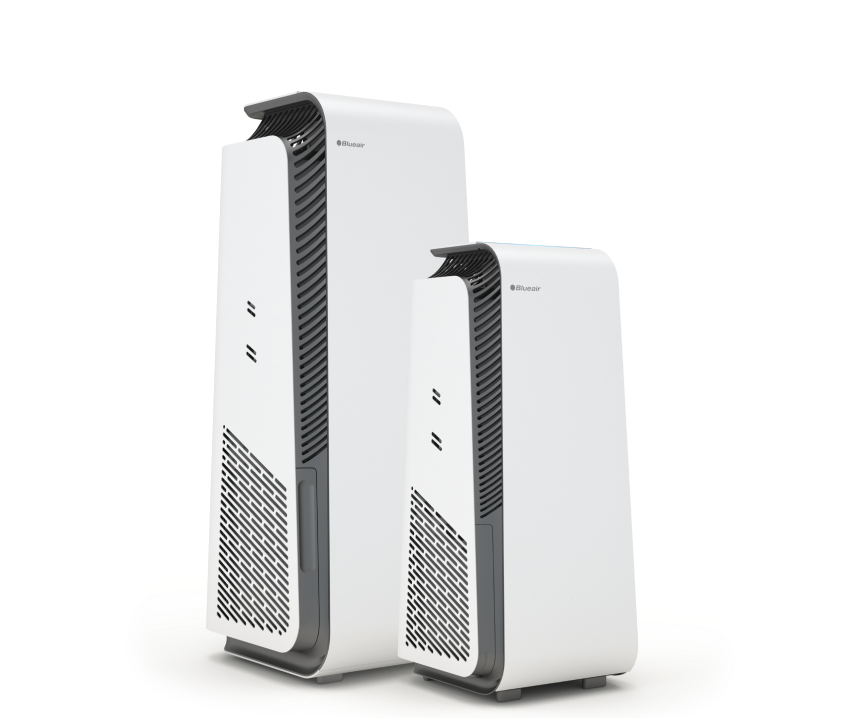
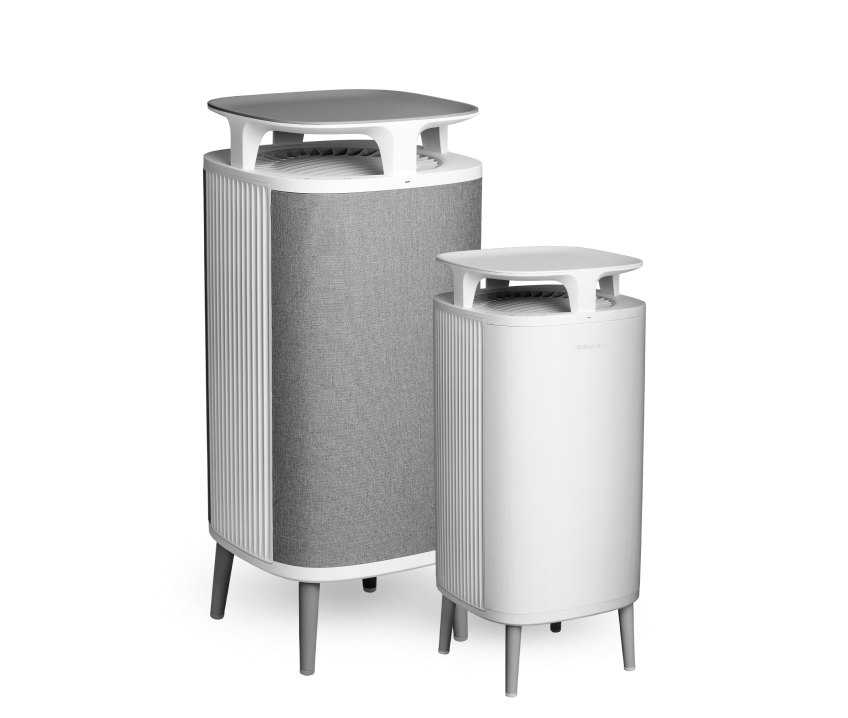
All HealthProtect‚Ñ¢ and DustMagnet‚Ñ¢ air purifier models can enable the Welcome Home feature.
What is the location accuracy of the Welcome Home function?
The always-on precise location access provides an estimate of the device's location that is as accurate as possible, usually within about 50 meters (160 feet) and sometimes as accurate as within 3 meters (10 feet). The service will work in dense urban areas as well.
What are the set up requirements for the Welcome Home feature to work?
Yes, there are a few conditions which must be met for the successful use of Welcome Home:
• The air purifier must be constantly connected to the home Wi-Fi
• Your home router and mobile device must be switched on
• You need to enable always-on location access for the Blueair App along with access to precise location. If the location access is disabled in your mobile device, then geofencing won’t get activated
• The Background App Refresh needs to be turned on in the Blueair App
Please note that the Battery saving mode of your mobile device will disable the geolocation services for the Welcome Home feature.
Please note that active schedules will affect the Welcome Home feature.
Control your unit with the app
How to delete a device from the app?
1. Open the Blueair App and click on your air purifier.
2. Scroll down and select Product Settings.
3. Click on Delete product.
How to set schedules in the app?
You can create schedules in the Blueair App to have the air purifier run at certain times and modes, based on your needs and habits. You'll be able to select the time that the air purifier goes into a specific mode, as well as a fan speed, LED brightness and the day(s) of operation. After every scheduling event the Blueair Purifier will return to the state where it was prior to scheduling. You can even activate a schedule when the device is in Standby mode. In this case the unit will return to Standby mode after the scheduling event is over. Please note the air purifier will turn off any ongoing schedule if any speed or mode is changed manually - either on the app or on the physical device. Your air purifier should be online (connected to the Wi-Fi) to trigger the scheduled mode.
How do I assign my air purifier to a location?
1. Open the Blueair app and click on your air purifier
2. Click “assign location” at the top of the page
3. Chose the bottom location with an arrow which is your current location or search for location
4. Press assign device
5. Chose the devices that shall be assigned to the location
6. Press assign
If you have multiple Blueair Purifiers connected to the App, you can add one location per device. You can also assign multiple Purifiers to the same location.
How can I control my air purifier via the Blueair app?
Adjust the fan speed, Auto mode, Night mode of your air purifier • Create schedules to run the air purifier • Set “Welcome home” to turn on your air purifier when you approach home.
Can I create multiple schedules on my connected Blueair air purifier?
‚Äã‚Äã‚Äã‚Äã‚Äã‚Äã‚Äã‚Äã‚Äã‚Äã‚Äã‚Äã‚Äã You can create multiple schedules per device, for instance:
- You can set up a schedule to run your purifier on Auto mode during working hours and on workdays.
- You can add a second schedule and send the purifier to Night mode every night from 10 pm until 6 am.
Each schedule can be individually named.
Air quality monitoring in the app
Where can I find the outdoor air quality for my location?
Open the Blueair App and you will see the outdoor air quality information (AQI) on top of the home screen.
Set your location by inputting your local address to get your local air quality information.
You can also add additional locations, like where you work, the location of friends and family members, or even locations all around the work and follow the outdoor AQI for those via the Blueair App.
Can the air purifier still track indoor air quality if it’s not connected to Wifi?
The air purifier can still track indoor air quality levels on the panel even when not connected to the WiFi. In the App, the air quality measurement will not be shown if the air purifier is offline.
How do I view the history of the air quality index (AQI) readings from my Blueair purifier?
1. Open the Blueair App and you will see the outdoor air quality history on top left of the graph.
2. Click on “Now” and you will be able to choose between seeing daily, weekly, or monthly aggregated AQI data on the graph.
Total Volatile Organic Compounds (tVOC) is the total concentration of all VOCs in the air. It is used to give an indication of the VOC levels.
Common VOCs sources: Gasoline, industrial chemical, solvents, burning fuel, wood, coal, natural gas, paints, glues.
What is the source of the outdoor air quality measurements in the Blueair app?
We use the BreezoMeter Air Quality Index (AQI) and pollutants monitoring for outdoor air quality measurements. The data is sent from the nearest BreezoMeter station. You may find more information about BreezoMeter directly on their website: https://breezometer.com/faq/
What do PM1, PM2.5, PM10 and tVOC stand for?
PM stands for particulate matter, which is the term for a mixture of solid particles and liquid droplets found in the air. Particles have different sizes:
• PM1 are particles with a diameter of 1 micrometer and smaller. Example of PM1 (from 0.3 to 1 micrometer): Bacteria, suspended dust, house dust, animal dander, smog, tobacco smoke, soot.
• PM2.5 are particles with a diameter of 2.5 micrometers and smaller (human hair is Approximately 70 micrometers in diameter). Example of PM2.5: house dust, animal dander, bacteria, cooking oil smoke, grease, smog, fly ash, settling dust.
• PM10 are particles with diameter of 10 micrometers and smaller. Examples of PM10: pollen, dust (settling dust, cement dust), mold spores.
Total Volatile Organic Compounds (tVOCs):
Volatile organic compounds (VOCs) are gases and odors emitted from different chemicals. VOCs can be found in the air in your home; they are released by cleaning products, cosmetics, carpeting, furniture, air fresheners and many other consumer products.
Total Volatile Organic Compounds (tVOC) is the total concentration of all VOCs in the air. It is used to give an indication of the VOC levels.
Common VOCs sources: Gasoline, industrial chemical, solvents, burning fuel, wood, coal, natural gas, paints, glues.
Blueair App FAQ
What Blueair products can I use with Alexa?
Blueair’s Blue Pure Max (“i” series), Protect and DustMagnet™ can be used with Alexa.
Blue Pure Max – available April 2023
Protect and DustMagnet™ – available May 2023
Can I control my air purifier using Alexa from outside my home?
Yes, if your air purifier is connected to the internet, you can control your air purifier using the Alexa app on your smartphone or tablet from anywhere.
What voice commands can I use with Alexa to control my air purifier?
Here are the voice commands you can use with Alexa to control your air purifier:
"Alexa, turn on/off
"Alexa, activate/deactivate
"Alexa, enable/disable
"Alexa, set fan speed to 3 on
"Alexa, increase/decrease fan speed on
"Alexa, turn on/off auto mode on
"Alexa, enable/disable auto mode on
"Alexa, turn of/off night mode on
"Alexa, enable/disable night mode on
"Alexa, set brightness to 50% on
”Alexa, brighten/dim
What should I do if Alexa is not responding to my voice commands to control my air purifier?
Here are some troubleshooting tips you can try for Alexa:
- Make sure you're using the power adapter that was included with your device.
- Make sure you have an active internet connection.
- Check that your Alexa device isn't muted. A light indicator turns red when your device is muted.
- For devices without a screen: press the Action button to see if your Echo device responds.
- To make sure that Alexa hears you, move your device away from walls, other speakers, or background noise.
- Speak naturally and clearly.
- Try saying, "Did you hear me?"
- Unplug your device and then plug it back in.
Here are some troubleshooting tips you can try for your air purifier:
- Make sure that your air purifier is plugged in and connected to the internet.
- Make sure your Blueair skill is properly set up in the Alexa app.
For additional help please go to: https://www.amazon.com/help/alexa/quickfixes
How can I control my air purifier using Alexa?
Before you can start controlling your air purifier with Alexa, you need to download the Blueair app, register an account, login and follow the app instructions to pair your product.
Once that is done, you have two ways to link the air purifier to Alexa.
Option 1:
- In the Blueair app, select Voice Assistants in the left menu
- Click on “Amazon Alexa” and follow the app instructions to link your air purifier to Alexa
Option 2:
- In the Alexa app, go to Discover Alexa / Skills & Games
- Search and select Blueair
- Click on "Enable to use" and follow the app instruction to link your air purifier to Alexa
After the skill has been successfully enabled, you can using voice control with your Blueair air purifier.
For example, you can say "Alexa, turn on bedroom air purifier," or "Alexa, set fan speed to 3 on bedroom air purifier."
Download the Blueair App to get started.


Click below or scan to download