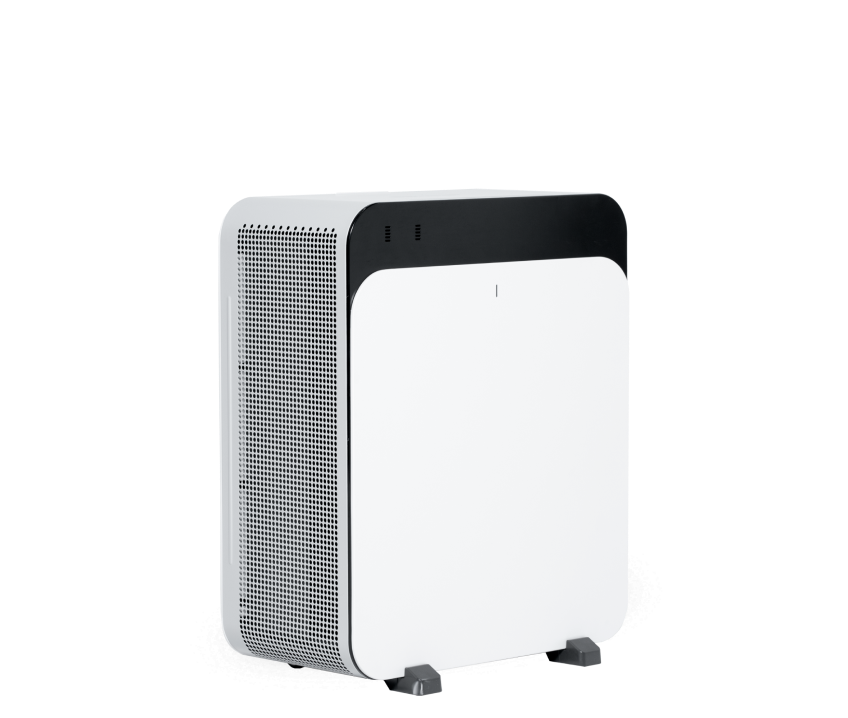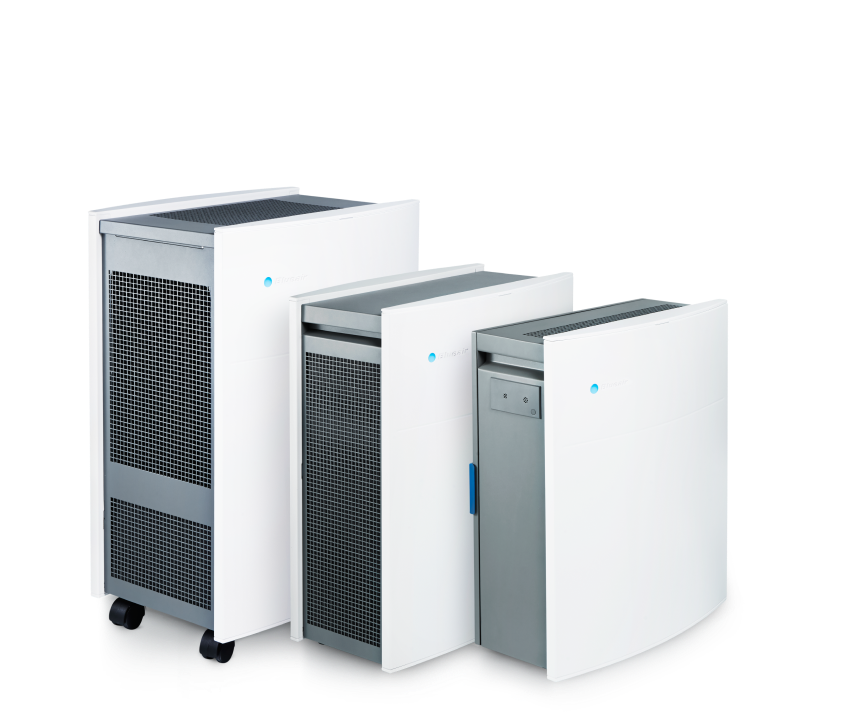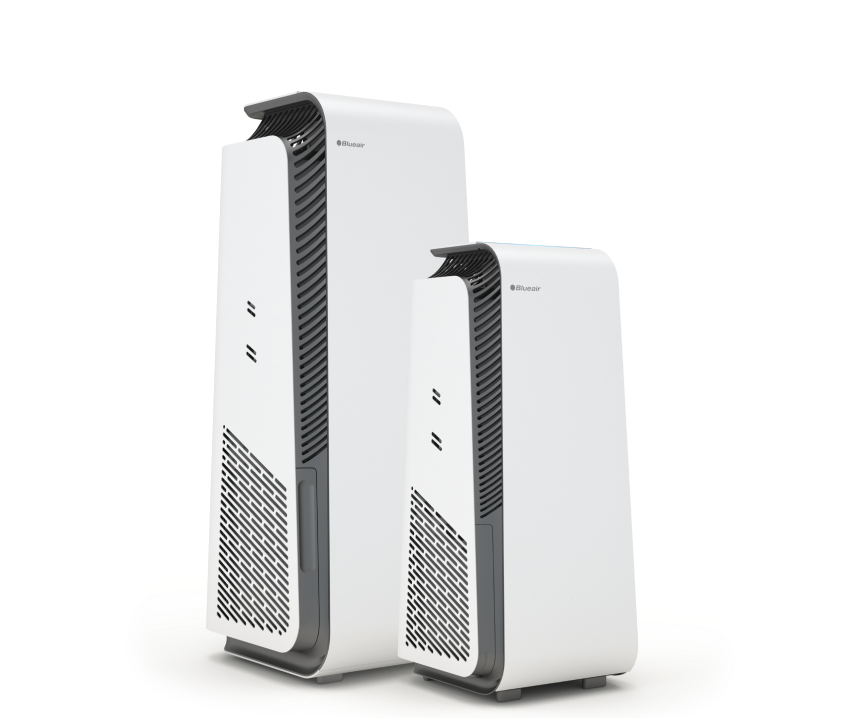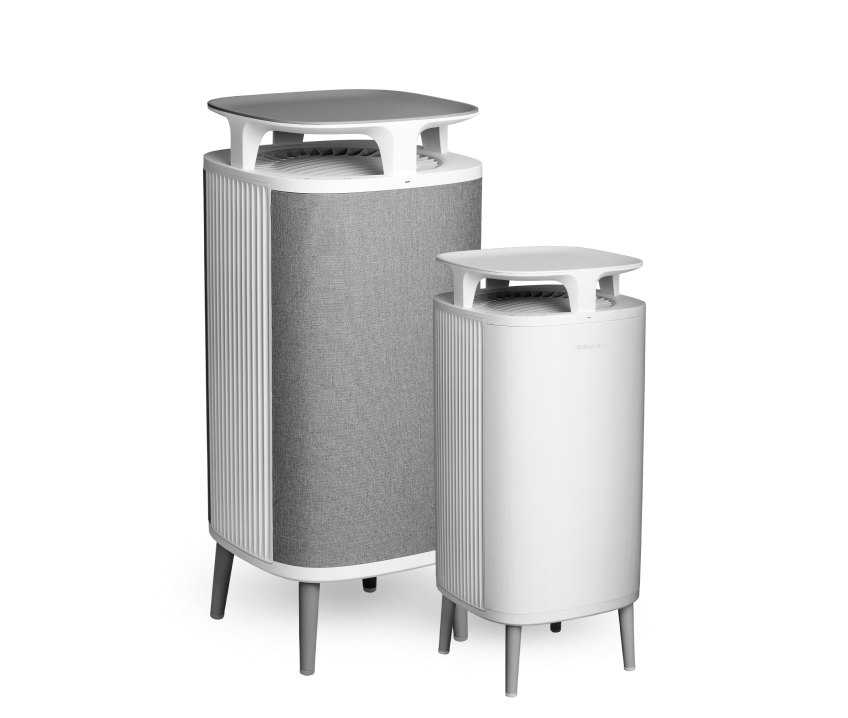
Blue Pure Max



How to Use Videos
Blue Pure Troubleshooting
My air purifier makes an unexpected noise
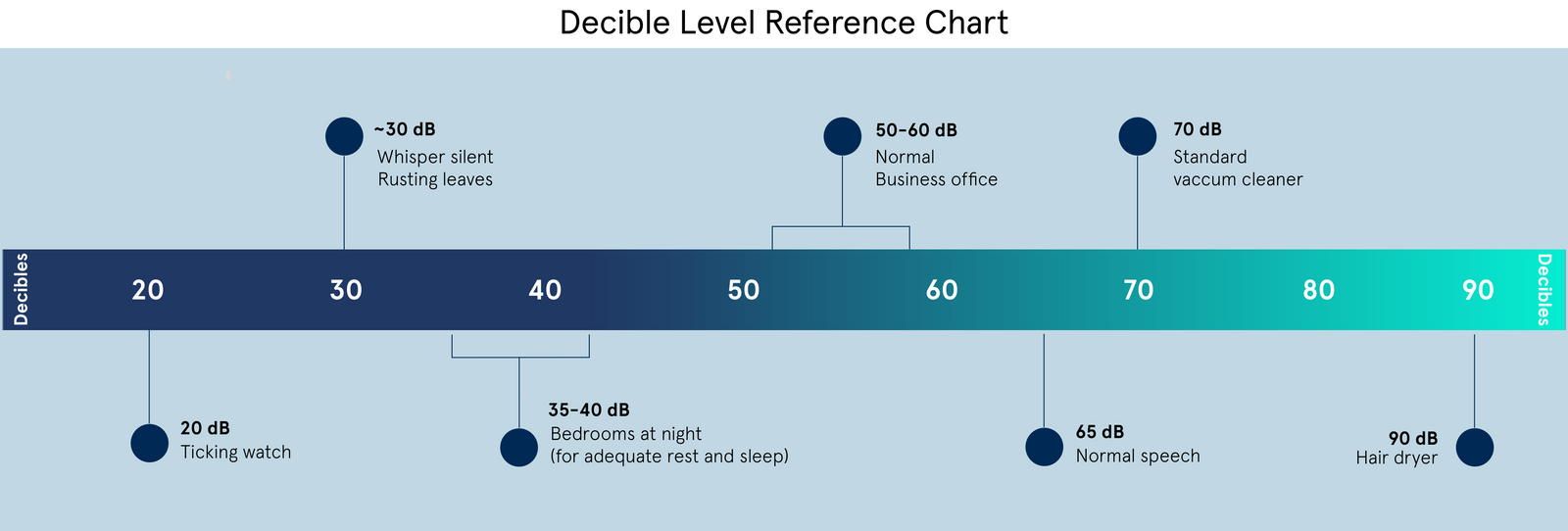
Expected noise with air purifiers
High speed level: Air purifiers that are set on a high-speed level produce more noise because they function at faster rates. On low fan speed, the air purifier should be quieter.
Dirty filters and pre-filters: If the main filter(s) or pre-filter(s) are very clogged or dirty, the engine might not get sufficient airflow, which may result in increased noise levels.
Room environment: In an empty room with high ceilings and hard material there may be increased sound with the echo, compared to room with carpet and other furniture which may help absorb noise created by the device.
If your air purifier makes an unusual sound
1.Turn off and unplug your air purifier
2. Remove the main filter(s) according to the instructions in the user manual and make sure that you have removed the plastic cover from the filter (not applicable to all models and filters).
3. Make sure that there are no objects or dust:
- Inside the air purifier (for Blue air purifiers, look through the top of the unit).
- Around the air inlets and air outlets
- On top of or directly against the air purifier
- On the pre-filters, if your air purifier has pre-filters
4. Re-install the filter and pre-filters correctly.
5.Ensure that the air purifier is with at least 10 cm from any objects or wall.
6.Make sure that the air purifier is standing stable on an even surface.
If the noise continues please contact the Blueair Customer Support to get help. If you notice any damage on the device, please contact the Blueair Customer Support.
App and connectivity issues
If you cannot connect your Protect air purifier to the WiFi via the Blueair App, please try the following steps:
Place your air purifier close to your phone and router during set up:
-
Ensure the smartphone you have the Blueair App opened on is within 3 feet (1 meter) of your air purifier and the router during set up. Once you have successfully paired your air purifier you can place it at your desired location.
-
Make sure that your air purifier is plugged in and powered on.
-
Open your App and select "Connect Product" and follow the instructions.
Update the Blueair App:
Open your App Store in your phone and ensure you have the latest Blueair App version
Activate Bluetooth:
Ensure Bluetooth is enabled in your smartphone's settingsCheck your router:
Ensure the following:
- Internet is currently running
- You are using a 2.4Ghz network
- Deactivate VPN
- Open your Blueair App and try to connect your product again
"Offline" in the App
If your air purifier has lost connection and does not reconnect by itself after a few minutes, the first step is to try to onboard the air purifier to the Blueair App again:
- Open the Blueair App
- Open your air purifier's page, go to Product Settings and Delete your air purifier
- Click on "Connect product" and follow the instructions to connect the air purifier again.
If that did not help, please try the following:
- Log out from the Blueair app
- Make sure that you are not signed in the Blueair app on another phone. For instance if a family member is sharing the Blueair App account with you, please ask them to sign out from the Blueair app account
- Log in with your Blueair credentials
- Reboot your air purifier (unplug, wait 15-30 seconds and plug again)
- Delete your air purifier from the app
- Connect your air purifier to the app again
- When the air purifier is online, try to change the settings again.
The firmware of my device is updating. How much time does this take?
The app notifies you every time the firmware in your device is being updated.
During the update, you must keep your air purifier connected to the Wi-Fi to have the firmware update complete. It is imperative you do not unplug the air purifier from the wall during any firmware updates.
The update should take a few minutes. Please do not disconnect your unit during the update!
If the update takes longer than a few minutes:
- Ensure your air purifier is within the router range.
- Leave your air purifier ON and connected to the WiFi. Do not unplug the air purifier during the update.
- Limit the number of connected devices or network activity while the update is in progress.
What to do if the air purifier seems to be stuck in the “firmware update” for over 30 minutes?
- Turn off the Wi-Fi network.
- Attempt to connect to a different Wi-Fi network or personal mobile hotspot.
- Upon connecting to a new Wi-Fi network or hotspot, the device will attempt to update again.
My indoor air quality is not improving when using my Blue Pure Max
Why does the air purifier detect polluted air?
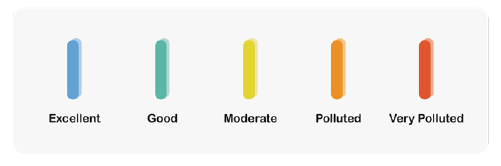
- The Blue Pure Max air purifiers have integrated particle sensors that can detect indoor air pollution level and display your air quality levels with the LED at the front of the unit in blue, amber and red.
- Particulate Matter (PM) peaks are normal and expected to happen temporarily, even when the air is of good quality because your air purifier’s sensors react each time the air purifier is in contact with airborne particles.
- Pollution from outside coming in from open windows or ventilation may also cause high PM levels.
- The levels of PM should decrease with the use of the air purifier and with ventilation.
Examples of PM sources: candles, smoke, cooking, incense, fireplace, accumulated dust, unfiltered vacuum cleaner, pollen, pets, etc.
How to decrease the particulate matter (PM) levels and improve your indoor air quality?
- Make sure that the air purifier is used in the recommended room size with closed windows and doors.
- Set the highest speed of the air purifier temporarily or use the Auto Mode to quickly improve the air ventilation in the room temporarily.
What to do if the air quality does not improve?
- Try to find the pollution source. If your air purifier has the Wi-Fi feature, the Blueair app can help find the pollution peaks. Open the Blueair app, add your air purifier and check the air quality history: check the indoor air quality peaks to see if it correlates to any air pollution inducing activty (cooking, lighting a candle, opening windows..etc)
- Test the air purifier in a smaller room. Place the air purifier in a small room running at the highest speed with all windows and doors (and ventilation if possible) closed.
- Clean the sensors. If the particle levels are constantly very high there might be accumulated dust on the sensor giving a false indication. Vacuum the outside of the air purifier, especially the air inlets, outlets, and the inlet for the air quality sensor. Power off the unit before vacuuming, see how to clean the sensors in the video below.
The red filter light indicator does not reset after replacing the filter of my Blue Pure Max
Why does a red light indicator show on the control panel?
A red filter replacement indicator appears on the air purifier when it is time to change filter.
How to reset the red filter light indicator?
To reset your filter timer and get rid of the red light after replacing the filter, press the Fan button for 15 sec until the red light turns off. Then release.
If the red filter light still does not reset, restart your air purifier and try to reset the red light again:
- Press the power button to set the air purifier on standby
- Unplug your unit and wait a few minutes
- Plug your unit back in
- Press the power button to set the air purifier on Standby
- Select a fan speed
- If the red light is still visible: try again to press the Fan button for 15 seconds until the red light turns off, then release.
If the red filter light still does not reset, perform a factory reset of your device:
The factory reset will restart your air purifier to its original state, including filter light indicator and disconnects from the Blueair app.
Press and hold the power button until all LEDs blink 4 times, then release. This can take from 15 to 30 seconds depending on the model.
Press and hold the power button for 15 sec until all LEDs blink 4 times, then release.
The factory reset will initiate after about 5 seconds when all LEDs will blink twice again, including the red filter light indicator (don't press any buttons in the before the blinking twice happens).
The air purifier will go to Standby mode after the factory reset is complete.
Important! Your air purifier will show offline after a factory reset. That is normal. Please open the Blueair app, select "Connect" and follow the instructions to connect your air purifier again.
I cannot connect my Blue Pure Max
Place your air purifier close to your phone and router during set up:
- Ensure the smartphone you have the Blueair App opened on is within 3 feet (1 meter) of your air purifier and the router during set up. Once you have successfully paired your air purifier you can place it at your desired location.
- Make sure that your air purifier is plugged in and powered on.
- Open your app and select "Connect" and follow the instructions.
Update the Blueair app:
- Open your App Store or Google Store in your phone and ensure you have the latest Blueair App version
Activate Bluetooth:
- Ensure Bluetooth is enabled in your smartphone's settings
Check your router:
- Ensure the following:
- Internet is currently working
- You are using a 2.4Ghz network
- Deactivate VPN
- Open your Blueair App and try to connect your product again


User Manuals & Replacement Filters
Blue Pure Max FAQs
When toggling between the different PM levels (PM1, PM2.5, PM10) on the display of 211i Max, Protect 70i or Classic Pro models, does this change the specific types of pollutants that are filtered out of the air?
While many Blueair units come equipped with a PM2.5 sensor, some models, including Blue Pure 211i Max, Protect 70i, or Classic Pro CP7i, have advanced sensors that measure PM1, PM2.5, and PM10 levels for more precise air quality monitoring. However, the display on these models can only show one of these three particulate matter (PM) values at a time due to the size of the screen. The display can toggle between PM1, PM2.5, and PM10 readings to track the levels of different pollutants in their environment. Switching between these indicators does not affect the air purifier's performance or target a specific pollutant size to remove from the air. The air purifier continuously works to remove particles down to 0.1 micron from the air regardless of which PM indicator is displayed.
My air purifier makes an unexpected noise
Expected noise with air purifiers
High speed level: Air purifiers that are set on a high-speed level produce more noise because they function at faster rates. On low fan speed, the air purifier should be quieter.
Dirty filters and pre-filters: If the main filter(s) or pre-filter(s) are very clogged or dirty, the engine might not get sufficient airflow, which may result in increased noise levels.
Room environment: In an empty room with high ceilings and hard material there may be increased sound with the echo, compared to room with carpet and other furniture which may help absorb noise created by the device.
If your air purifier makes an unusual sound
1.Turn off and unplug your air purifier
2. Remove the main filter(s) according to the instructions in the user manual and make sure that you have removed the plastic cover from the filter (not applicable to all models and filters).
3. Make sure that there are no objects or dust:
- Inside the air purifier (for Blue air purifiers, look through the top of the unit).
- Around the air inlets and air outlets
- On top of or directly against the air purifier
- On the pre-filters, if your air purifier has pre-filters
4. Re-install the filter and pre-filters correctly.
5.Ensure that the air purifier is with at least 10 cm from any objects or wall.
6.Make sure that the air purifier is standing stable on an even surface.
If the noise continues please contact the Blueair Customer Support to get help. If you notice any damage on the device, please contact the Blueair Customer Support.
My air purifier was connected before and now it has disappeared from the app
Why is your air purifier not visible in the app anymore?
- You cannot have two Blueair App accounts connected to one air purifier.
- The air purifier will be removed from the original account when onboarded to a new one.
What to do if your air purifier is not visible in the app anymore?
- Open your Blueair App
- Click on Connect product and follow the instructions in the app.
- Make sure to use only one Blueair app account to control and see information about your air purifier.
You can use the same account on different smartphones: You and your family can share the same account.
Do Blueair air purifiers emit ozone?
All Blueair air purifiers are CARB certified, meaning they are considered safe and do not exceed ozone emission limits. Blueair has conducted ongoing independent testing to ensure that our air purifiers do not release harmful ozone levels. Our units are tested in accordance with UL Standard 867 and demonstrate ozone emission levels far below the mandated California Air Resource Board (CARB) ozone emissions limit of less than 50 parts per billion (ppb).
Tested at Intertek, a CARB-accredited test lab, Blueair products undergo a comprehensive series of tests to measure ozone emissions. In these eight-hour-long tests, air purifiers are tested at high and low speeds – with and without filters installed. The Intertek facility features environmental chamber technology, using trusted and proven scientific methods available for testing to verify if products produce ozone.
Certified air purifiers, including all Blueair air purifiers, are listed on the CARB website.
CARB-certified products are also identified by the CARB text printed on the product packaging:
In 2021, Blueair’s Blue Pure Auto, DustMagnet, HealthProtect, and Pure Fan Auto models also received Zero Ozone Verification, one of the most stringent ozone emissions standards available, by independent testing lab Intertek. Products with this designation meet or exceed all other nationally recognized certification programs, emitting ozone concentrations of 5 parts per billion (ppb) or less. Additional Blueair models are currently also being certified.
Learn more: https://www.intertek.com/sustainability/zero-ozone/
App and connectivity issues
If you cannot connect your Protect air purifier to the WiFi via the Blueair App, please try the following steps:
Place your air purifier close to your phone and router during set up:
-
Ensure the smartphone you have the Blueair App opened on is within 3 feet (1 meter) of your air purifier and the router during set up. Once you have successfully paired your air purifier you can place it at your desired location.
-
Make sure that your air purifier is plugged in and powered on.
-
Open your App and select "Connect Product" and follow the instructions.
Update the Blueair App:
Open your App Store in your phone and ensure you have the latest Blueair App version
Activate Bluetooth:
Ensure Bluetooth is enabled in your smartphone's settingsCheck your router:
Ensure the following:
- Internet is currently running
- You are using a 2.4Ghz network
- Deactivate VPN
- Open your Blueair App and try to connect your product again
"Offline" in the App
If your air purifier has lost connection and does not reconnect by itself after a few minutes, the first step is to try to onboard the air purifier to the Blueair App again:
- Open the Blueair App
- Open your air purifier's page, go to Product Settings and Delete your air purifier
- Click on "Connect product" and follow the instructions to connect the air purifier again.
If that did not help, please try the following:
- Log out from the Blueair app
- Make sure that you are not signed in the Blueair app on another phone. For instance if a family member is sharing the Blueair App account with you, please ask them to sign out from the Blueair app account
- Log in with your Blueair credentials
- Reboot your air purifier (unplug, wait 15-30 seconds and plug again)
- Delete your air purifier from the app
- Connect your air purifier to the app again
- When the air purifier is online, try to change the settings again.
The firmware of my device is updating. How much time does this take?
The app notifies you every time the firmware in your device is being updated.
During the update, you must keep your air purifier connected to the Wi-Fi to have the firmware update complete. It is imperative you do not unplug the air purifier from the wall during any firmware updates.
The update should take a few minutes. Please do not disconnect your unit during the update!
If the update takes longer than a few minutes:
- Ensure your air purifier is within the router range.
- Leave your air purifier ON and connected to the WiFi. Do not unplug the air purifier during the update.
- Limit the number of connected devices or network activity while the update is in progress.
What to do if the air purifier seems to be stuck in the “firmware update” for over 30 minutes?
- Turn off the Wi-Fi network.
- Attempt to connect to a different Wi-Fi network or personal mobile hotspot.
- Upon connecting to a new Wi-Fi network or hotspot, the device will attempt to update again.