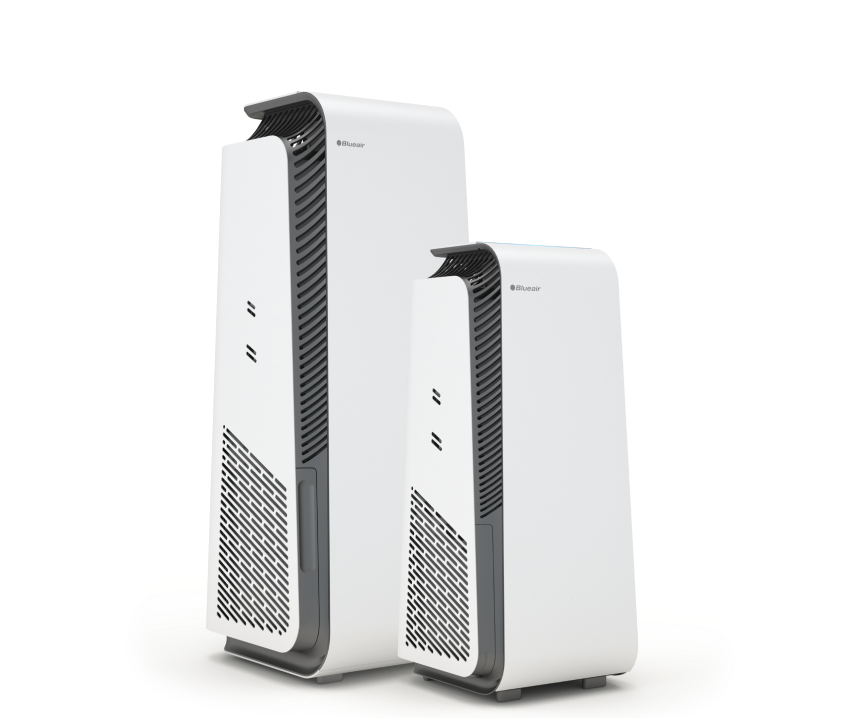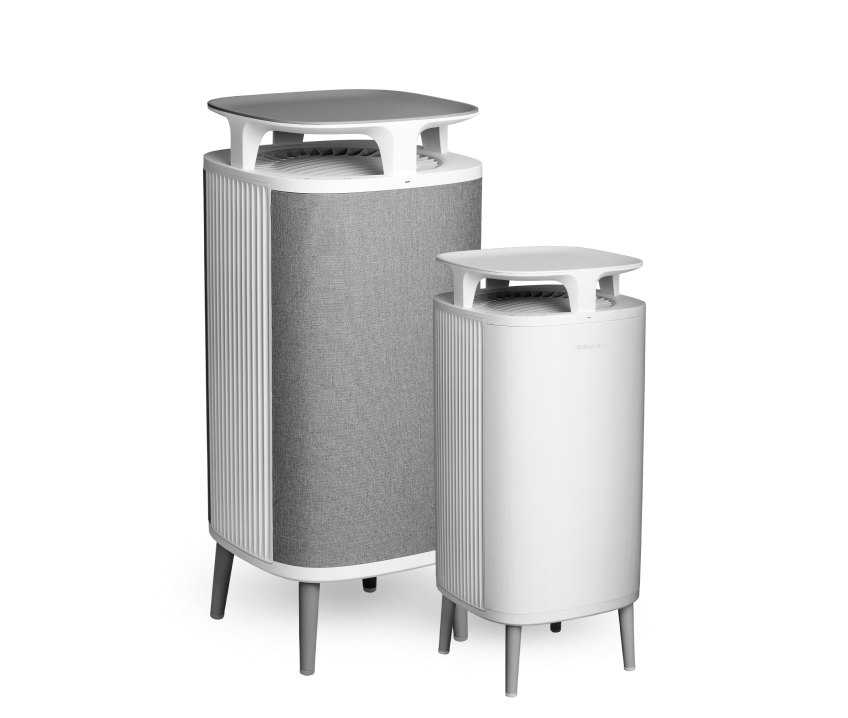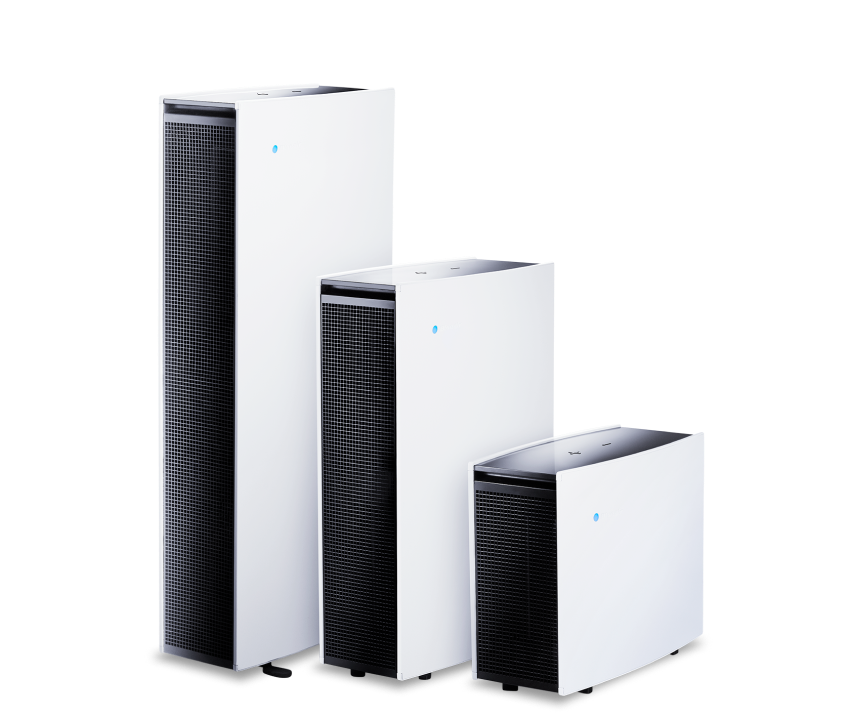
Blue Signature




How to Use Videos
Blue Signature Troubleshooting
I don’t notice a difference in the air quality when using the Blue Signature Large SP4i air purifier. Is it working?
Yes—the Blue Signature Large SP4i air purifier is actively working, even if the improvement in air quality isn't immediately noticeable. The unit continuously monitors airborne particles using its integrated laser particle sensor, which detects levels of PM1.0, PM2.5, and PM10. When in Auto Mode, the fan speed automatically adjusts based on real-time air quality readings to deliver optimal performance without unnecessary noise or energy use.
To ensure you get the best results, follow these expert setup tips:
-
Remove the plastic wrap from the filter before using the air purifier. Operating the unit with the packaging still on will prevent proper filtration.
-
Use in an appropriately sized room—not larger than the recommended capacity of 705 sq. ft.
-
Allow for proper airflow—place the purifier where air can circulate freely around it.
-
Maintain clearance—keep at least 4 inches (10 cm) between the unit and surrounding objects.
-
Close doors and windows while the purifier is operating to prevent new pollutants from entering.
-
Replace the filter when the indicator on the control panel alerts you—this is crucial for maintaining performance.
-
Follow routine maintenance as outlined in your user manual.
With these steps, you can be confident that your Blue Signature purifier is delivering cleaner, healthier air—even if it's working quietly in the background.
When I switch between PM1, PM2.5, and PM10 in the Blueair app, does it change which pollutants the air purifier targets?
Great question—and the short answer is: No, switching between PM levels in the app does not affect how your Blue Signature Large (SP4i) air purifier functions.
The Blue Signature air purifier is equipped with advanced laser sensors that continuously monitor PM1, PM2.5, and PM10—three key categories of airborne particulate matter. In the Blueair app, you can toggle between these readings to see real-time air quality data for different particle sizes. However, this only changes what is displayed in the app; it does not change the filtration behavior of the device.
Regardless of which PM level you're viewing, the air purifier is always operating at full efficiency, removing particles as small as 0.1 microns from your indoor air—including smoke, dust, pollen, and other airborne pollutants.
In short, the display helps you better understand your air quality, while the purifier handles the rest—automatically and effectively.
How do I factory reset the Blue Signature devices?
To perform a factory reset on your Blue Signature Large and Medium air purifiers, follow the simple steps below. A factory reset will erase all custom settings, including Wi-Fi connections, and return the device to its original default configuration.
- Make sure the device is powered on
- Plug in your air purifier and press the On/Standby button if it isn’t already running.
- Locate the On/Standby Button
- This is the power button, usually marked with a circle and vertical line (⏻) icon.
- Press and hold the On/Standby button for 15 seconds.
- Wait for Confirmation
- The display will blink or reset to indicate the factory settings have been restored.
What Happens After a Factory Reset?
- The device will forget all Wi-Fi and app pairings
- Display lock, fan settings, and Eco Mode (if enabled) will return to defaults
- You’ll need to reconnect via the Blueair app to use smart features again
When Should You Factory Reset?
- If the purifier is not responding to controls
- When changing Wi-Fi networks
- Before transferring ownership to someone else
- To clear persistent error states or connectivity issues
What maintenance is recommended for Blue Signature models?
To keep your Blue Signature Large and Medium air purifiers operating at peak performance, Blueair recommends a combination of routine cleaning, filter care, and safety checks. Below is a complete breakdown of the recommended maintenance tasks:
1. General Cleaning
Frequency: Monthly or as needed
What to Do:
- Unplug the device before cleaning.
- Use a soft, clean cloth to wipe down the top and exterior surfaces.
- Avoid harsh chemicals, gasoline, or solvents, as these can damage the casing and electronics.
2. Pre-Filter Maintenance
Frequency: Every 2–4 weeks (more often if you have pets or high dust levels)
What to Do:
- Vacuum using a soft brush attachment
- Or wash it in a washing machine on gentle setting and air dry thoroughly before reattaching (Please do use dryer to dry!)
3. Filter Replacement
Frequency: Every 9–12 months, or when the filter replacement indicator turns red
What to Do:
- Follow the step-by-step replacement instructions in the manual.
- After replacing, reset the filter indicator by:
- Holding the Fan Speed button for 15 seconds, or
- Using the Blueair app
5. Sensor Care (Air Quality Sensors)
Frequency: If air quality readings seem inaccurate
What to Do:
- Power off the device
- Clean around the sensor vents with a dry cloth or low-suction vacuum
- Restart the unit
My Blue Signature air purifier won’t turn on. What should I do?
If your Blue Signature Large (SP4i) or Medium (SP3i) air purifier isn’t powering on, follow these expert troubleshooting steps to identify and resolve the issue:
Step 1: Confirm the unit is receiving power
- Unplug the device, then inspect the power cable for any visible damage. If damaged, discontinue use and contact Blueair Customer Support.
- Plug the power cable firmly into a working electrical outlet.
- Press the On/Standby button or select a fan speed from the control panel (depending on your model).
- Check for:
- LED indicators lighting up.
- Airflow coming from the outlet (place your hand over it to feel for moving air).
Step 2: Test the power source
- Try plugging the air purifier into a different outlet.
- Test the original outlet with another device (e.g., a lamp) to ensure it’s working properly.
Step 3: Check for firmware and power compatibility
- If your air purifier is Wi-Fi enabled, connect it to the Blueair App to ensure it has the latest firmware update.
- If using a power converter, confirm that the unit’s voltage requirements (see the rating label) match your country’s electrical standards.
Step 4: Perform a factory reset
- Press and hold the power button until all LEDs blink four times—this may take 15–30 seconds depending on the model.
- Wait—do not press any buttons. After about 5 seconds, all LEDs will blink twice to confirm the reset, including the red filter indicator.
- The unit will enter Standby Mode once the reset is complete.
- Re-connect the air purifier to the Blueair App, if applicable.
If your air purifier still does not turn on after these steps—or if you notice any signs of damage—please contact Blueair Customer Support. Our team is ready to assist you and ensure your device is working as it should.
User Manuals & Replacement Filters
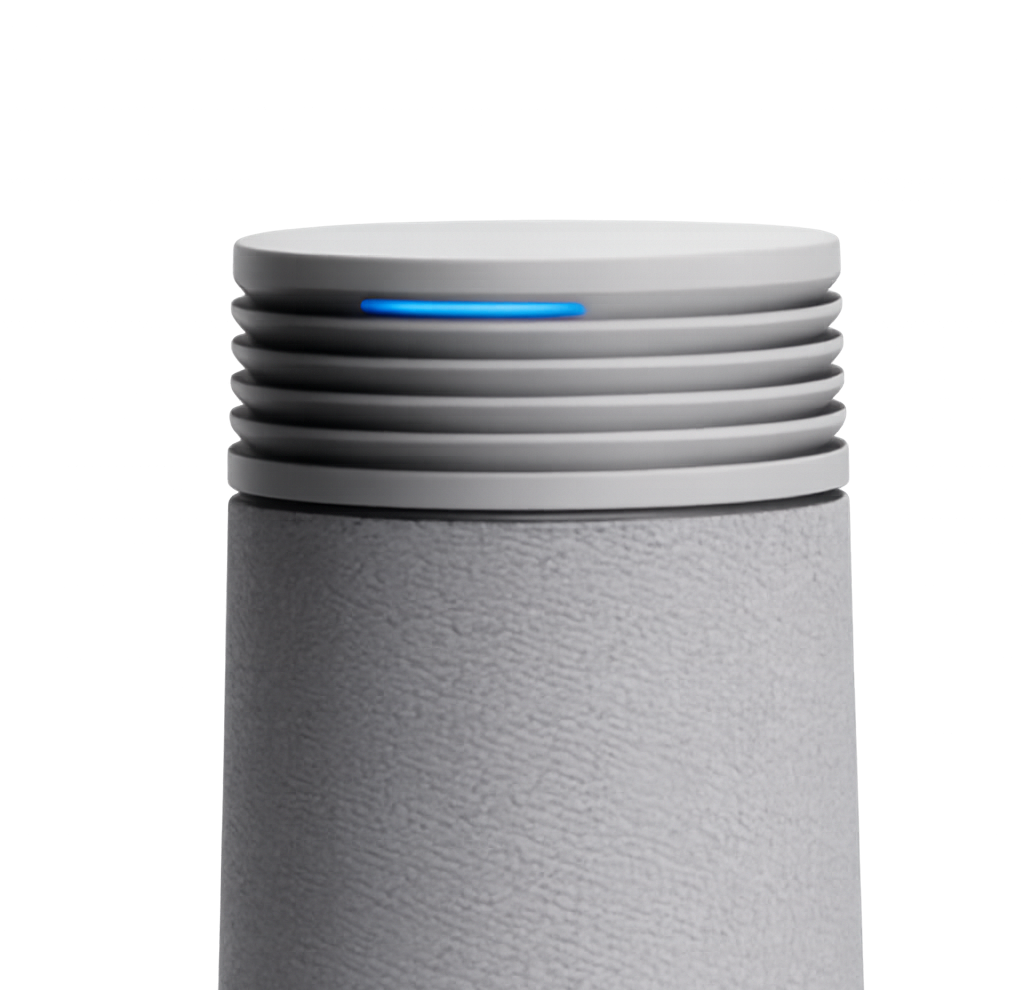
Blue Signature FAQs
What is the VOC Index Scale?
The VOC Index runs on a scale from 1 to 500:
- A lower number indicates cleaner air
- A higher number indicates increased VOC activity
On the device display, this is translated into simplified air quality levels shown as L1 to L5, which correspond to the five AQI light colors.
| VOC 1-150 | Blue - Excellent |
| VOC 151-275 | Green - Good |
| VOC 276-375 | Yellow - Moderate |
| VOC 376-450 | Orange - Polluted |
| VOC 451-500 | Red - Very Polluted |
What does the VOC reading mean?
Blueair does not display VOC levels in ppb or µg/m³. Instead, the VOC sensor uses a VOC Index, which is a smart measurement based on how current VOC levels compare to your environment’s recent air history.
This index reflects VOC concentration relative to the past 24 hours, which helps the device recognize changes in air quality rather than relying on a fixed baseline.
VOC sensors can vary widely depending on calibration, environment, and sensitivity this is why we don't show VOC in ppb like other devices. The VOC Index method is designed to provide a more stable and meaningful indoor air quality indicator, based on trends and changes over time. Because of this, the VOC Index is not directly comparable to devices that show VOC levels in ppb.
Does VOC affect Auto Mode?
Yes - depending on your settings.
By default, Auto Mode can respond to both:
- Particle pollution (PM2.5)
- VOC activity
If VOC levels rise (for example during cooking or cleaning), the device may increase fan speed to help clear the air more quickly.
If you feel the fan increases speed too frequently, you can adjust Auto Mode settings in the app to respond to PM only instead and toggle off TVOC.
Does Blue Signature Medium SP3i device have a VOC sensor, how does it work?
Blueair Signature Medium models are equipped with a VOC sensor and can detect volatile organic compounds (VOCs) — gases released from common household sources such as cooking, cleaning products, sprays, paints, and fragrances.
How does AirSense “learn” over time and adjust run time?
AirSense uses an adaptive algorithm to determine how long each refresh cycle should run.
Here’s how it works:
AirSense starts by running a cycle between 10 and 25 minutes
If the device consistently detects “hidden” pollution after refreshing the room, it learns to run longer refresh cycles.