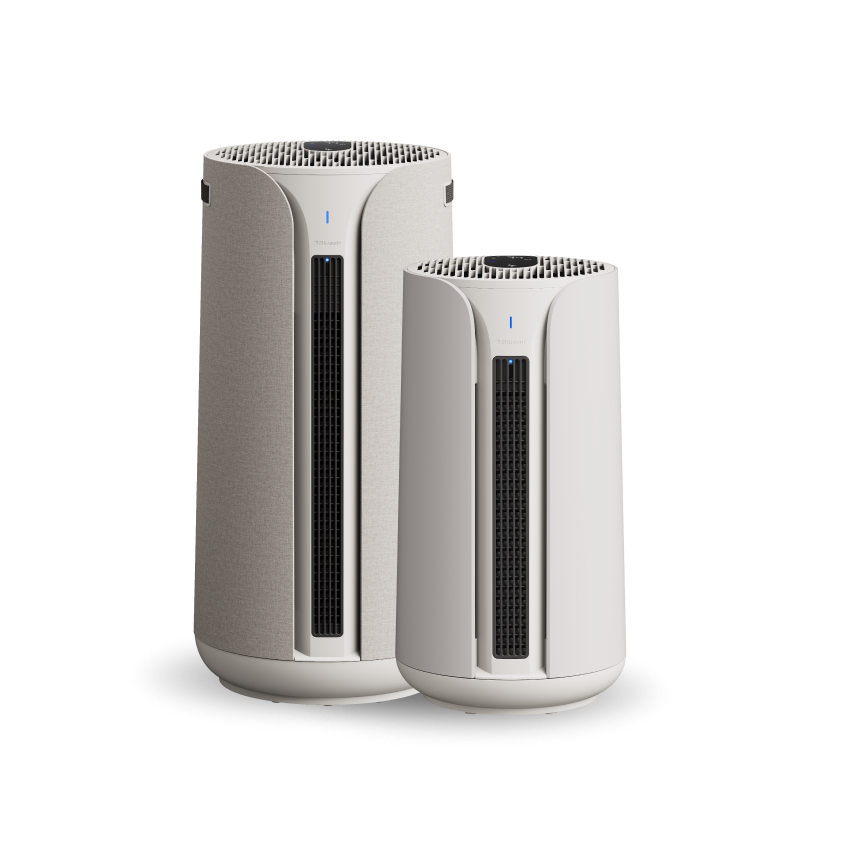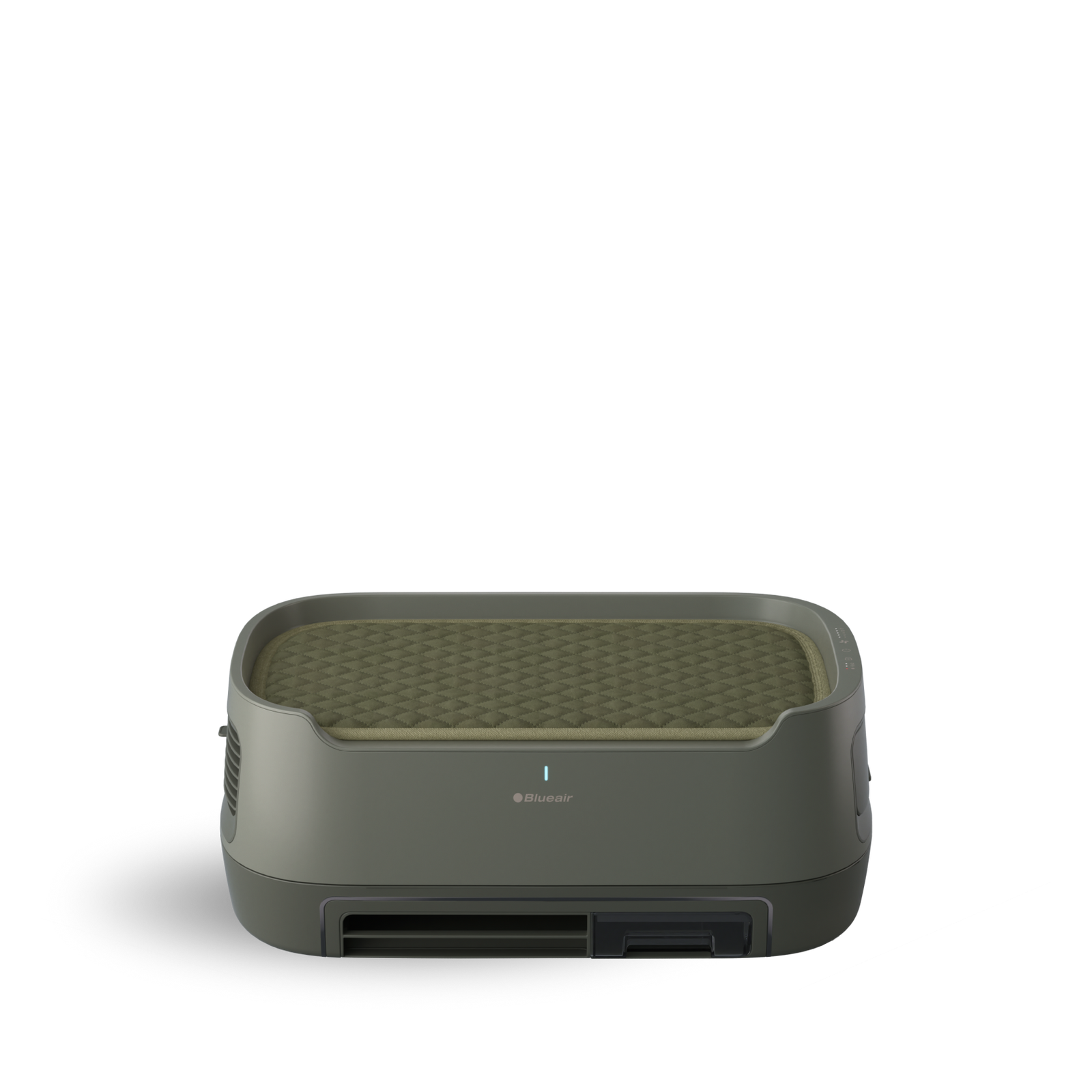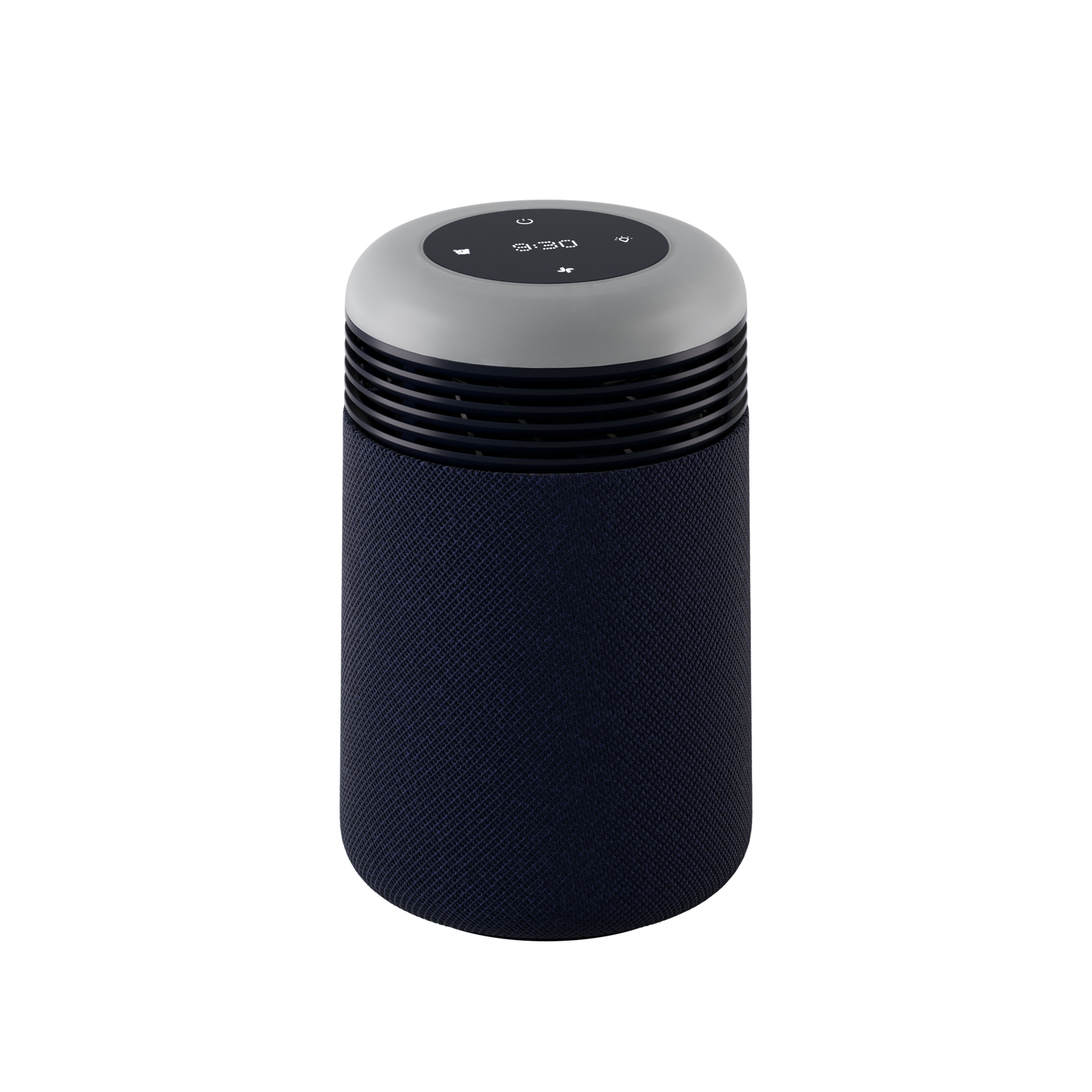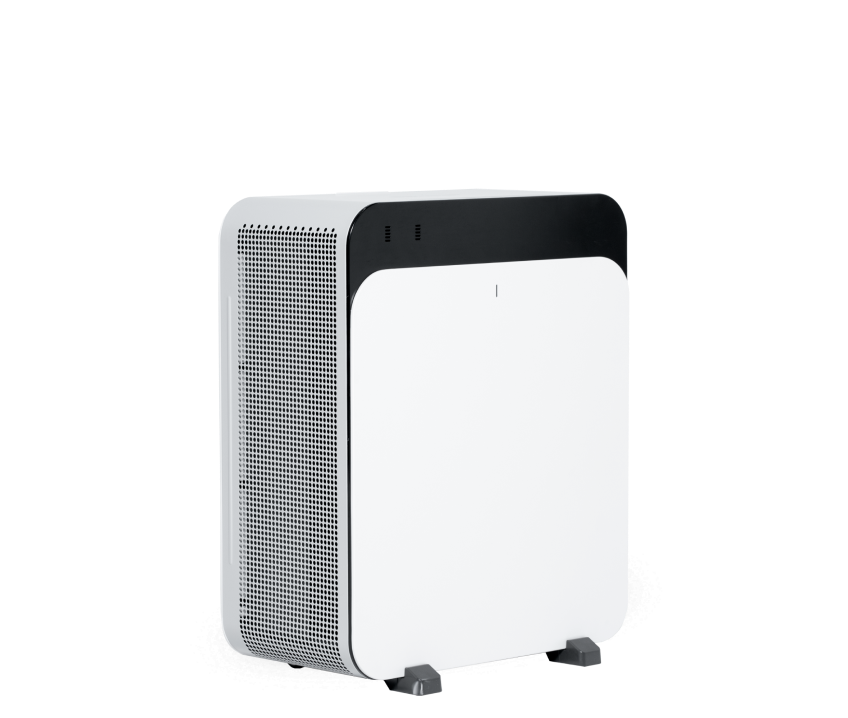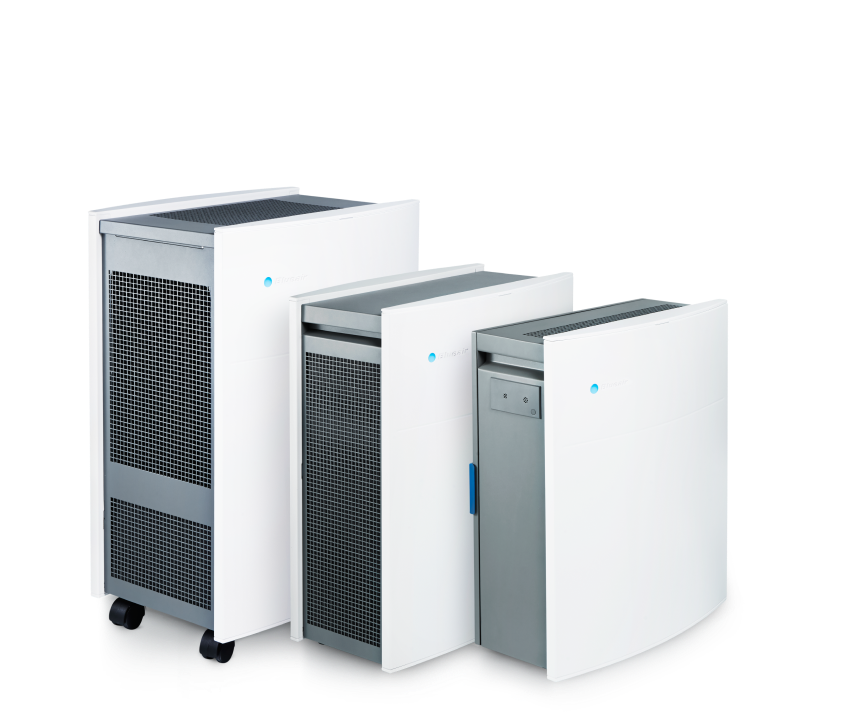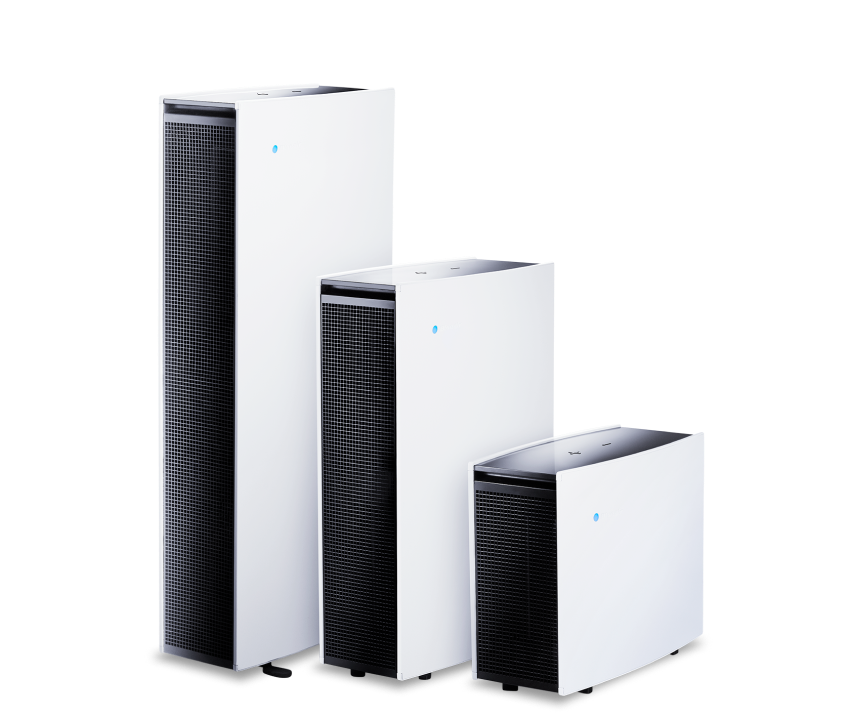
Classic Pro



Top questions about Classic Pro
Which replacement filter do I need for my Classic Pro?
If your device is connected on the app, you can simply click "Replace My Filter" > "Order Filter" and select "One Time Purchase" or "Sign up / Manage Filter Subscription" which will take you straight to the correct filter on blueair.com.
If your device is not connected on the app, you can visit our filter page here https://www.blueair.com/us/air-purifier-filters and select Classic Pro as the family and your model as the series.
What is HINS Pure™ Technology?
HINS Pure™ Technology is a lighting technology now integrated into our Classic Pro air purifiers for an added level of protection. The technology shines on the filter to inactivate germs that are trapped in your air purifiers filters. Here's a comprehensive look at its benefits and how it works.
-
Inactivates up to 91% of Bacteria: HINS Pure™ Technology utilizes a high-intensity narrow-spectrum light with a wavelength of 405 nanometers (nm). This light, part of the visible spectrum, is adept at inactivating up to 91% of bacteria that accumulate on filters. This process, known as photodynamic inactivation, targets specific compounds within bacterial cells, leading to their destruction.
-
Safer than UVC: HINS Pure™ Technology uses a narrower spectrum of violet light than UVC that effectively inactivates exposed bacteria without deteriorating filter material. This pioneering lighting technology has been researched in US & Scottish medical setting and shown to provide disinfection without risk to doctors and patients.
-
Safe for Human Exposure: Excessive exposure to ultraviolet radiation, such as those from UVC, could lead to adverse effects on human skin and eyes. PhotonPure technology, operating at a harmless wavelength, reducing risks while maintaining effective germicidal properties.1
In summary, HINS Pure™ Technology offers a powerful and safe solution for air purification, ensuring not only efficient bacteria inactivation but also the preservation of filter integrity and human well-being.
1. https://www.nss.nhs.scot/media/2211/hins-light-lr-v10.pdf
How do I reset the red filter light indicator on my Classic Pro purifier?
To reset the red light filter indicator on your Classic Pro air purifier, follow these steps:
- Extra long press the Fan Speed button for about 15 seconds until all the LEDs on the interface light up, then release.
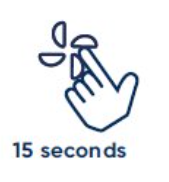
- The red filter replacement indicator will blink three times and then disappear.
- Reminder: After replacing the filter, it is required to manually conduct a filter reset on the air purifier.
My Classic Pro Won't Turn On
1. Turn off and unplug the air purifier
2. Check the power cable: If the power cable is damaged, contact Customer Support
3. Make sure that there are no objects or dust:
- Inside the air purifier
- On top of or directly against the air purifier
- Around the air inlets and air outlets.
- On the pre-filters
- Around the air quality sensors.
4. Check the filter:
- Make sure that the plastic wrapping around the filter is removed.
- Insert the filter and make sure it is correctly inserted. The handles should be on top.
- Make sure that the top of the air purifier is correctly attached to the bottom.
- Plug the power cable firmly into an outlet
- Press the On/Standby button to turn on the air purifier and select a speed level. If the air purifier does not have a On/Standby button, and select a fan speed from the control panel
- Make sure that the LED indicators on the air purifier are lighting up
- Make sure that the airflow is working (feel with your hands that air is coming out from the air outlet).
If the air purifier still does not work as expected:
- Try to plug the power cable into another outlet. Or test your outlet with another device. For instance, you can plug in a lamp and see if it lights up.
- Connect your air purifier to the Blueair App to make sure it has received the latest firmware update (if your air purifier has the WiFi feature).
- If you are using a power converter, make sure to check the rating label of your air purifier and verify that it is certified for use in your country.
- Try a factory reset.
How to perform the factory reset
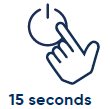
- Press and hold the power button until all LEDs blink 4 times, then release. This can take from 15 to 30 seconds depending on the model.
- The factory reset will initiate after about 5 seconds when all LEDs will blink twice again, including the red filter light indicator (don't press any buttons in the before the blinking twice happens).
- The air purifier will go to Standby mode after the factory reset is completed.
- Re-connect the air purifier to the Blueair app after resetting.
If your air purifier still does not function as expected, or if you notice any damage on the device, please contact the local Blueair Customer Support team.
What should I do if I can't setup my Classic Pro to the Blueair App?
If you encounter connection issues during the setup of your air purifier with the Blueair App, follow these troubleshooting steps:
- Ensure proximity and power:
- Make sure your phone, air purifier, and Wi-Fi router are in the same room and close distance during initial setup. Once paired successfully, you can relocate the air purifier.
- Ensure your air purifier is plugged in and powered on.
- Check App Version:
- Open your App Store (iOs or Google Play) and update to the latest version of the Blueair app.
- Verify Router Connection:
- Confirm that your router is on, connected to the internet, and using a 2.4GHz network. Deactivate VPN if active.
- Activate Bluetooth:
- Enable Bluetooth in your smartphone's settings.
Classic Pro Troubleshooting
How do I reset the red filter light indicator on my Classic Pro purifier?
To reset the red light filter indicator on your Classic Pro air purifier, follow these steps:
- Extra long press the Fan Speed button for about 15 seconds until all the LEDs on the interface light up, then release.
- The red filter replacement indicator will blink three times and then disappear.
- Reminder: After replacing the filter, it is required to manually conduct a filter reset on the air purifier.
My Classic Pro Won't Turn On
1. Turn off and unplug the air purifier
2. Check the power cable: If the power cable is damaged, contact Customer Support
3. Make sure that there are no objects or dust:
- Inside the air purifier
- On top of or directly against the air purifier
- Around the air inlets and air outlets.
- On the pre-filters
- Around the air quality sensors.
4. Check the filter:
- Make sure that the plastic wrapping around the filter is removed.
- Insert the filter and make sure it is correctly inserted. The handles should be on top.
- Make sure that the top of the air purifier is correctly attached to the bottom.
- Plug the power cable firmly into an outlet
- Press the On/Standby button to turn on the air purifier and select a speed level. If the air purifier does not have a On/Standby button, and select a fan speed from the control panel
- Make sure that the LED indicators on the air purifier are lighting up
- Make sure that the airflow is working (feel with your hands that air is coming out from the air outlet).
If the air purifier still does not work as expected:
- Try to plug the power cable into another outlet. Or test your outlet with another device. For instance, you can plug in a lamp and see if it lights up.
- Connect your air purifier to the Blueair App to make sure it has received the latest firmware update (if your air purifier has the WiFi feature).
- If you are using a power converter, make sure to check the rating label of your air purifier and verify that it is certified for use in your country.
- Try a factory reset.
How to perform the factory reset
- Press and hold the power button until all LEDs blink 4 times, then release. This can take from 15 to 30 seconds depending on the model.
- The factory reset will initiate after about 5 seconds when all LEDs will blink twice again, including the red filter light indicator (don't press any buttons in the before the blinking twice happens).
- The air purifier will go to Standby mode after the factory reset is completed.
- Re-connect the air purifier to the Blueair app after resetting.
If your air purifier still does not function as expected, or if you notice any damage on the device, please contact the local Blueair Customer Support team.
What should I do if I can't setup my Classic Pro to the Blueair App?
If you encounter connection issues during the setup of your air purifier with the Blueair App, follow these troubleshooting steps:
- Ensure proximity and power:
- Make sure your phone, air purifier, and Wi-Fi router are in the same room and close distance during initial setup. Once paired successfully, you can relocate the air purifier.
- Ensure your air purifier is plugged in and powered on.
- Check App Version:
- Open your App Store (iOs or Google Play) and update to the latest version of the Blueair app.
- Verify Router Connection:
- Confirm that your router is on, connected to the internet, and using a 2.4GHz network. Deactivate VPN if active.
- Activate Bluetooth:
- Enable Bluetooth in your smartphone's settings.
The air quality isn't improving with my Classic Pro air purifier. What should I do?
If you're experiencing issues with the air quality not improving with your Classic Pro air purifier, consider the following troubleshooting steps:
Potential Cause: After a long periods of operation, the sensor inlet may get dusty thus showing incorrect levels that do not improve. Note that for first-time use, the built-in laser sensor may take up to 1 day to calibrate to its new environment, initially showing "Blue - Excellent" on startup.
Troubleshooting Steps:
- Unplug the air purifier and wait for approximately 30 seconds.
- Check for any objects or dust around the air quality sensors at the front of the air purifier. Gently wipe away the dust on the sensor with a soft cloth.
- Reconnect the power cable to the air purifier.
- Press the power button to restart the air purifier.
- If, despite using the air purifier and proper ventilation, the air quality still does not improve, please contact customer support for further assistance.
How do I control the WI-fi LED and adjust brightness on my Classic Pro air purifier?
Turn off/on the Wi-Fi LED:
When starting the appliance for the first time, the Wi-Fi LED will blink to signal readiness for pairing. After a successful connection to the app, the Wi-Fi LED will stay solid.
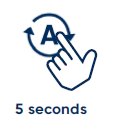
To turn off the Wi-Fi LED, long-press the Auto button for about 5 seconds and release. The Wi-Fi LED will then stop blinking.
Change Brightness:
To adjust the brightness of the touch controls, press and hold the On/Standby button with one finger, then tap the Fan Speed button with another finger. This action will either increase or decrease the brightness level, depending on the current setting.

User Manuals & Replacement Filters
Classic Pro FAQs
Which replacement filter do I need for my Classic Pro?
If your device is connected on the app, you can simply click "Replace My Filter" > "Order Filter" and select "One Time Purchase" or "Sign up / Manage Filter Subscription" which will take you straight to the correct filter on blueair.com.
If your device is not connected on the app, you can visit our filter page here https://www.blueair.com/us/air-purifier-filters and select Classic Pro as the family and your model as the series.
What is HINS Pure™ Technology?
HINS Pure™ Technology is a lighting technology now integrated into our Classic Pro air purifiers for an added level of protection. The technology shines on the filter to inactivate germs that are trapped in your air purifiers filters. Here's a comprehensive look at its benefits and how it works.
-
Inactivates up to 91% of Bacteria: HINS Pure™ Technology utilizes a high-intensity narrow-spectrum light with a wavelength of 405 nanometers (nm). This light, part of the visible spectrum, is adept at inactivating up to 91% of bacteria that accumulate on filters. This process, known as photodynamic inactivation, targets specific compounds within bacterial cells, leading to their destruction.
-
Safer than UVC: HINS Pure™ Technology uses a narrower spectrum of violet light than UVC that effectively inactivates exposed bacteria without deteriorating filter material. This pioneering lighting technology has been researched in US & Scottish medical setting and shown to provide disinfection without risk to doctors and patients.
-
Safe for Human Exposure: Excessive exposure to ultraviolet radiation, such as those from UVC, could lead to adverse effects on human skin and eyes. PhotonPure technology, operating at a harmless wavelength, reducing risks while maintaining effective germicidal properties.1
In summary, HINS Pure™ Technology offers a powerful and safe solution for air purification, ensuring not only efficient bacteria inactivation but also the preservation of filter integrity and human well-being.
1. https://www.nss.nhs.scot/media/2211/hins-light-lr-v10.pdf
How do I reset the red filter light indicator on my Classic Pro purifier?
To reset the red light filter indicator on your Classic Pro air purifier, follow these steps:
- Extra long press the Fan Speed button for about 15 seconds until all the LEDs on the interface light up, then release.
- The red filter replacement indicator will blink three times and then disappear.
- Reminder: After replacing the filter, it is required to manually conduct a filter reset on the air purifier.
My Classic Pro Won't Turn On
1. Turn off and unplug the air purifier
2. Check the power cable: If the power cable is damaged, contact Customer Support
3. Make sure that there are no objects or dust:
- Inside the air purifier
- On top of or directly against the air purifier
- Around the air inlets and air outlets.
- On the pre-filters
- Around the air quality sensors.
4. Check the filter:
- Make sure that the plastic wrapping around the filter is removed.
- Insert the filter and make sure it is correctly inserted. The handles should be on top.
- Make sure that the top of the air purifier is correctly attached to the bottom.
- Plug the power cable firmly into an outlet
- Press the On/Standby button to turn on the air purifier and select a speed level. If the air purifier does not have a On/Standby button, and select a fan speed from the control panel
- Make sure that the LED indicators on the air purifier are lighting up
- Make sure that the airflow is working (feel with your hands that air is coming out from the air outlet).
If the air purifier still does not work as expected:
- Try to plug the power cable into another outlet. Or test your outlet with another device. For instance, you can plug in a lamp and see if it lights up.
- Connect your air purifier to the Blueair App to make sure it has received the latest firmware update (if your air purifier has the WiFi feature).
- If you are using a power converter, make sure to check the rating label of your air purifier and verify that it is certified for use in your country.
- Try a factory reset.
How to perform the factory reset
- Press and hold the power button until all LEDs blink 4 times, then release. This can take from 15 to 30 seconds depending on the model.
- The factory reset will initiate after about 5 seconds when all LEDs will blink twice again, including the red filter light indicator (don't press any buttons in the before the blinking twice happens).
- The air purifier will go to Standby mode after the factory reset is completed.
- Re-connect the air purifier to the Blueair app after resetting.
If your air purifier still does not function as expected, or if you notice any damage on the device, please contact the local Blueair Customer Support team.
What should I do if I can't setup my Classic Pro to the Blueair App?
If you encounter connection issues during the setup of your air purifier with the Blueair App, follow these troubleshooting steps:
- Ensure proximity and power:
- Make sure your phone, air purifier, and Wi-Fi router are in the same room and close distance during initial setup. Once paired successfully, you can relocate the air purifier.
- Ensure your air purifier is plugged in and powered on.
- Check App Version:
- Open your App Store (iOs or Google Play) and update to the latest version of the Blueair app.
- Verify Router Connection:
- Confirm that your router is on, connected to the internet, and using a 2.4GHz network. Deactivate VPN if active.
- Activate Bluetooth:
- Enable Bluetooth in your smartphone's settings.