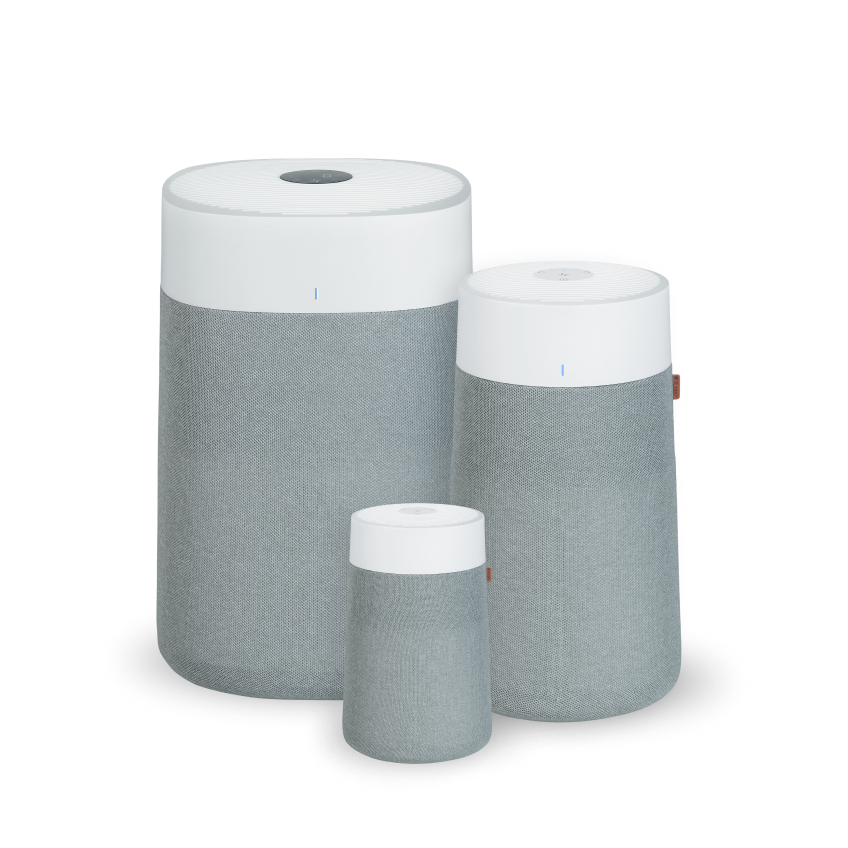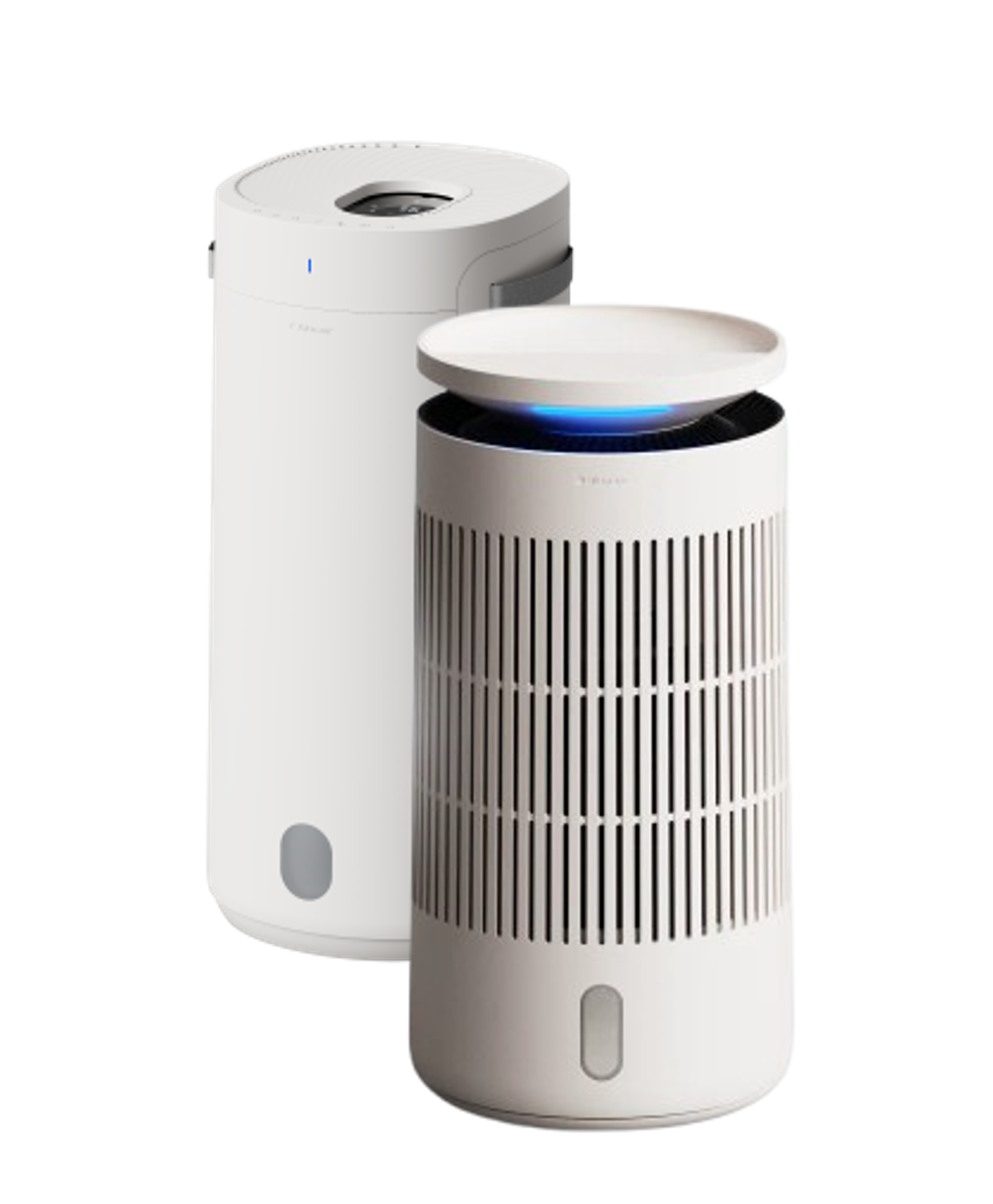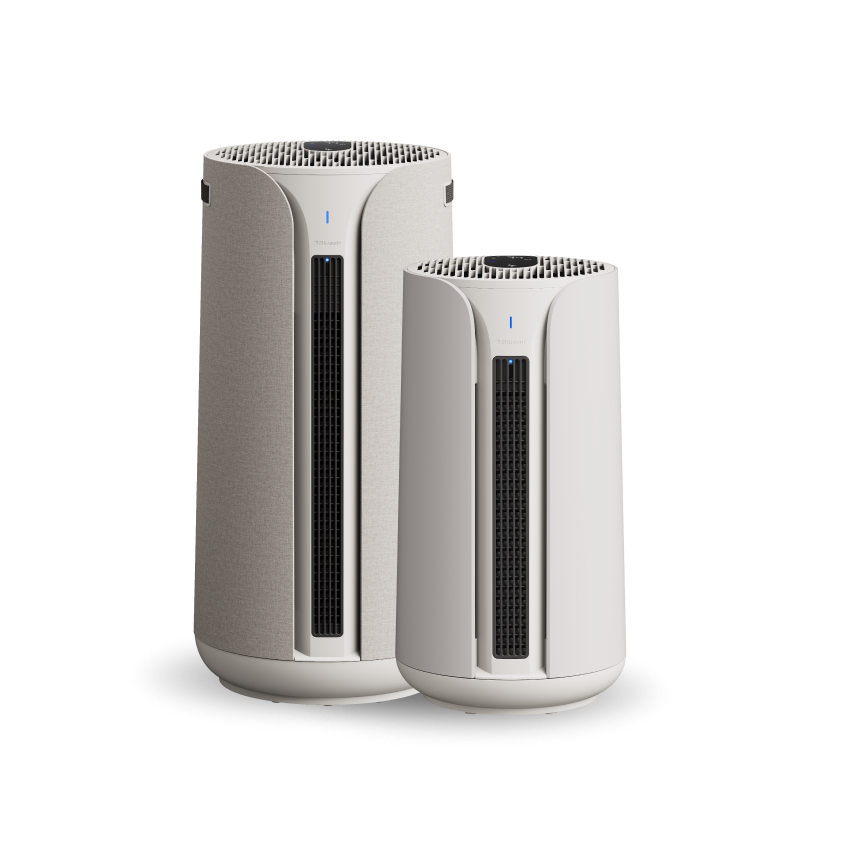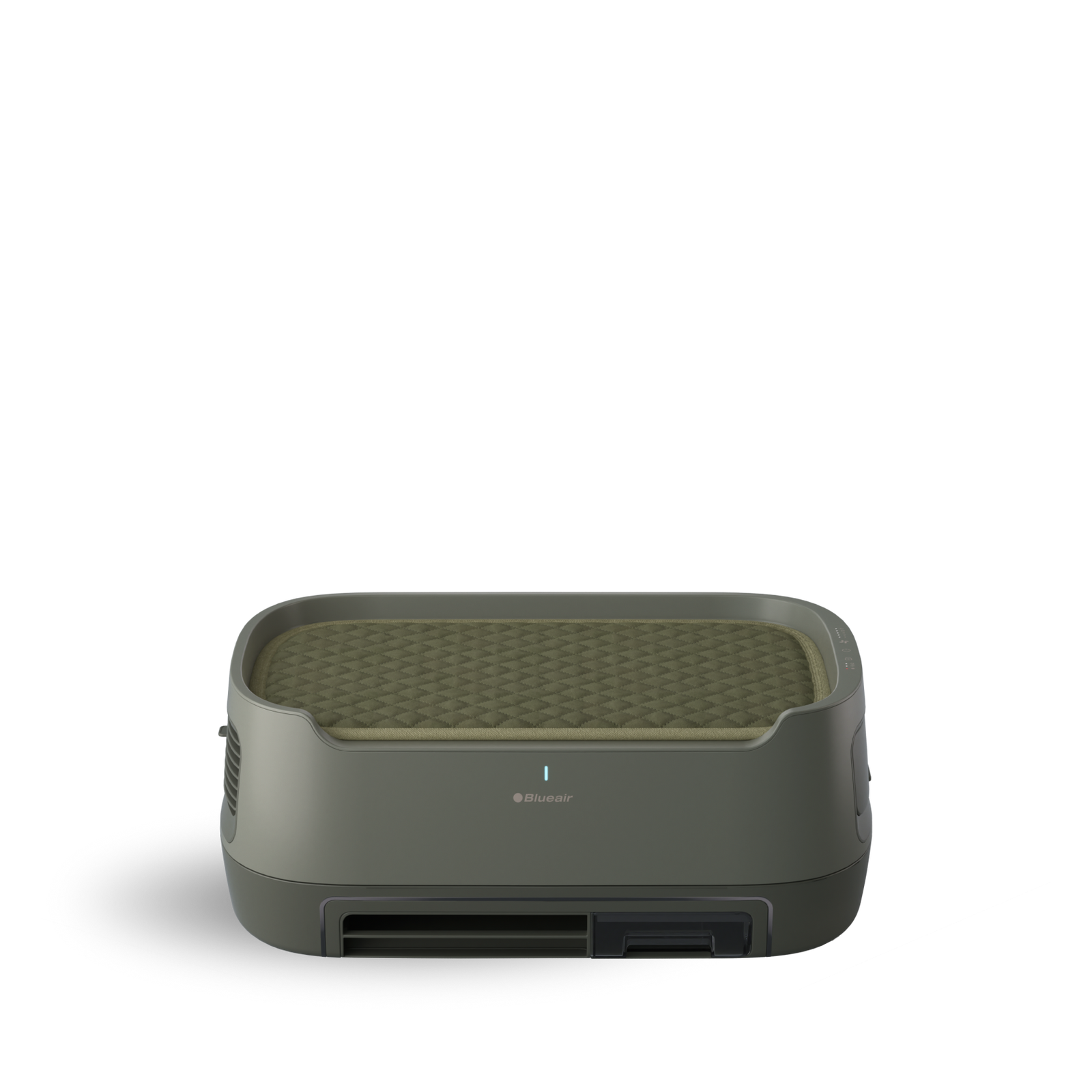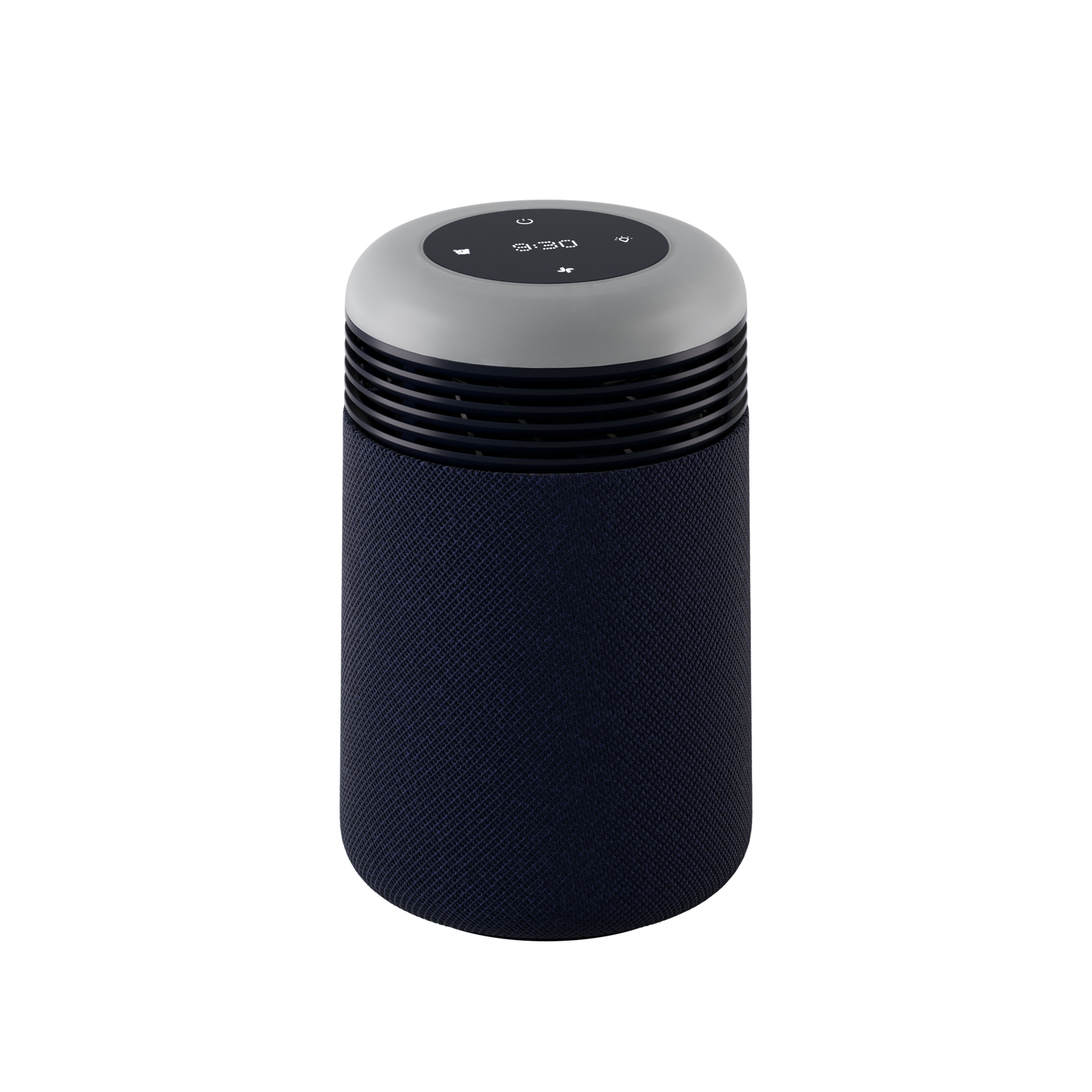
Protect



Top Questions about Protect
The firmware of my device is updating. How much time does this take?
The app notifies you every time the firmware in your device is being updated.
During the update, you must keep your air purifier connected to the Wi-Fi to have the firmware update complete. It is imperative you do not unplug the air purifier from the wall during any firmware updates.
The update should take a few minutes. Please do not disconnect your unit during the update!
If the update takes longer than a few minutes:
• Ensure your air purifier is within the router range.
• Leave your air purifier ON and connected to the WiFi. Do not unplug the air purifier during the update.
• Limit the number of connected devices or network activity while the update is in progress.
What to do if the air purifier seems to be stuck in the “firmware update” for over 30 minutes?
• Turn off the Wi-Fi network.
• Attempt to connect to a different Wi-Fi network or personal mobile hotspot.
• Upon connecting to a new Wi-Fi network or hotspot, the device will attempt to update again.
Why is there a red light indicator on the panel of my Protect air purifier?
A filter replacement indicator appears on the air purifier when it is time to change filter.
Remove the used filter and replace by a new filter. On Protect air purifiers the filter light indicator disappears automatically after inserting a new Blueair filter. You do not need to, nor can, press down the filter light to reset the filter replacement indicator.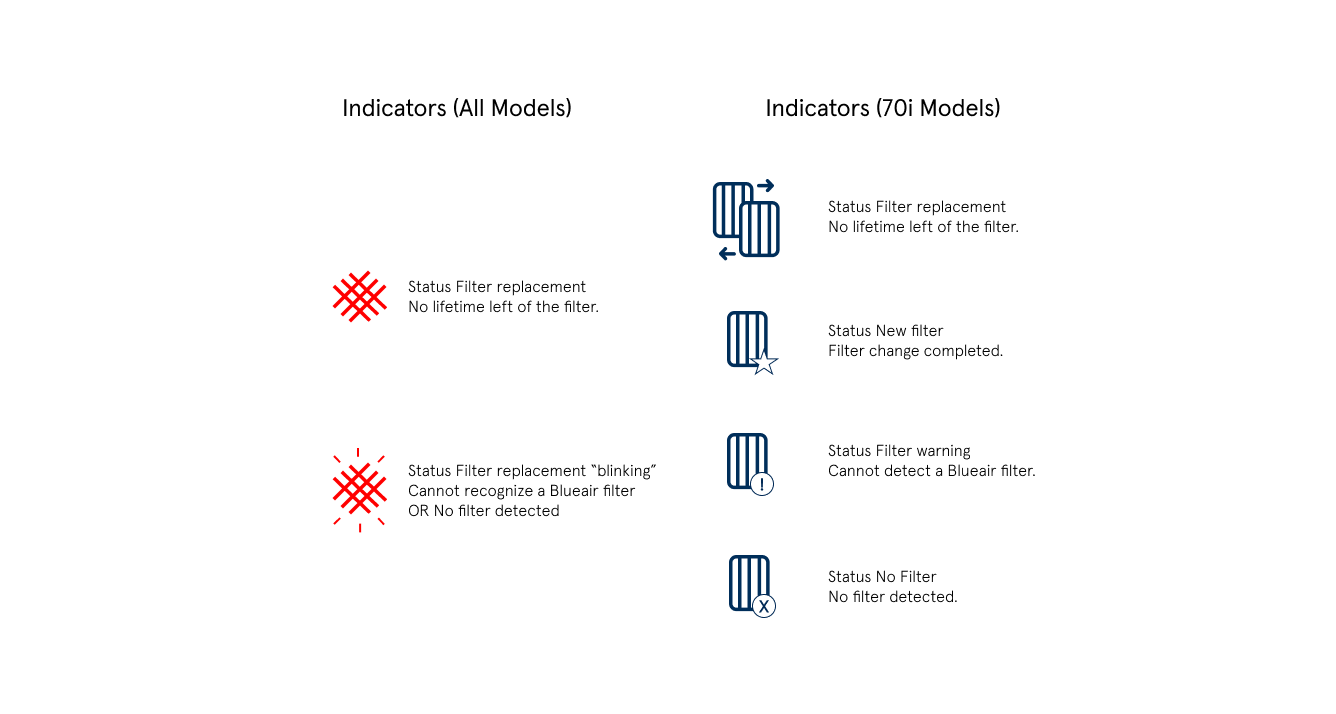
How do I read the air quality indications on my Protect air purifier?
The Protect has built-in particle, VOC, temperature and humidity sensor.
The LEFT indicator light bar on the user panel displays air quality base show the highest pollution level out of PM1, PM2.5 and PM10
The RIGHT indicator light bar on the user panel displays air quality base on VOC measurement.
The light will show one of five colors; red (very polluted), orange (slightly polluted), yellow (moderate), green (good), and blue (excellent) to indicate air quality.
The air quality LED indicator can be turned off by pressing down the setting the air purifier to Night mode, or adjusting the LED brightness setting in the Blueair app. 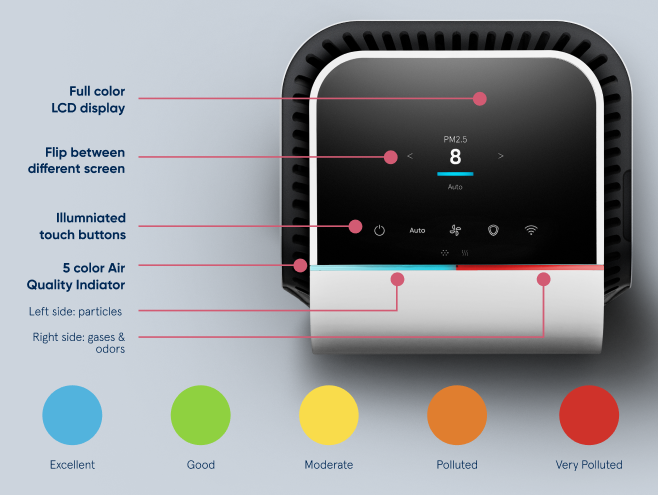
Which filters do I need for my Protect purifier?
You should first confirm the air purifier model name to find which filters are compatible with your unit.
The Serial Number and the MAC address appear on two different labels underneath the device.
If your air purifier is connected to the Blueair app you can additionally view the MAC address by selecting air purifier name and navigating to Product Settings › Product Information.
Once you know your model number, you can go to https://www.blueair.com/us/air-purifier-filters. Scroll down and select the model you have. All compatible filters and pre-filters will then be displayed. You can then click and order your filter as needed.
How do I do a factory reset on my Protect purifier?
You should only use the Factory reset as a "last chance" troubleshooting step, when the wifi/ connection is stuck, the air purifier does not start, or control settings cannot be used.
Before you make a factory reset always first try to unplug the device and restart it first. To perform a factory reset on your protect Hold the power button for at least 30 seconds.
How to Use Videos
Troubleshooting
App and connectivity issues
If you cannot connect your Protect air purifier to the WiFi via the Blueair App, please try the following steps:
Place your air purifier close to your phone and router during set up:
-
Ensure the smartphone you have the Blueair App opened on is within 3 feet (1 meter) of your air purifier and the router during set up. Once you have successfully paired your air purifier you can place it at your desired location.
-
Make sure that your air purifier is plugged in and powered on.
-
Open your App and select "Connect Product" and follow the instructions.
Update the Blueair App:
Open your App Store in your phone and ensure you have the latest Blueair App version
Activate Bluetooth:
Ensure Bluetooth is enabled in your smartphone's settingsCheck your router:
Ensure the following:
- Internet is currently running
- You are using a 2.4Ghz network
- Deactivate VPN
- Open your Blueair App and try to connect your product again
"Offline" in the App
If your air purifier has lost connection and does not reconnect by itself after a few minutes, the first step is to try to onboard the air purifier to the Blueair App again:
- Open the Blueair App
- Open your air purifier's page, go to Product Settings and Delete your air purifier
- Click on "Connect product" and follow the instructions to connect the air purifier again.
If that did not help, please try the following:
- Log out from the Blueair app
- Make sure that you are not signed in the Blueair app on another phone. For instance if a family member is sharing the Blueair App account with you, please ask them to sign out from the Blueair app account
- Log in with your Blueair credentials
- Reboot your air purifier (unplug, wait 15-30 seconds and plug again)
- Delete your air purifier from the app
- Connect your air purifier to the app again
- When the air purifier is online, try to change the settings again.
The firmware of my device is updating. How much time does this take?
The app notifies you every time the firmware in your device is being updated.
During the update, you must keep your air purifier connected to the Wi-Fi to have the firmware update complete. It is imperative you do not unplug the air purifier from the wall during any firmware updates.
The update should take a few minutes. Please do not disconnect your unit during the update!
If the update takes longer than a few minutes:
- Ensure your air purifier is within the router range.
- Leave your air purifier ON and connected to the WiFi. Do not unplug the air purifier during the update.
- Limit the number of connected devices or network activity while the update is in progress.
What to do if the air purifier seems to be stuck in the “firmware update” for over 30 minutes?
- Turn off the Wi-Fi network.
- Attempt to connect to a different Wi-Fi network or personal mobile hotspot.
- Upon connecting to a new Wi-Fi network or hotspot, the device will attempt to update again.
My Protect air purifier is always detecting high levels of pollution (high PM or high tVOCs)
The Protect air purifiers have a built-in sensor to monitor the indoor air quality levels.
Particulate Matter (PM)* and Volatile Organic Compounds (VOCs)** peaks are normal and expected to happen temporarily, even when the air is of good quality because your air purifier’s sensors react each time the air purifier is in contact with airborne particles or gases.
Pollution from outside coming in from open windows or ventilation may also cause high PM levels.
How to decrease the particulate matter (PM) and Volatile Organic Compounds (VOCs) levels and improve your indoor air quality?
- Make sure that the air purifier is used in an adapted room size with closed windows and doors.
- Set the highest speed of the air purifier temporarily or use the Auto Mode
- Avoid excessive use of perfumed substances, cleaning products, or other VOC contributors
- Ventilate the room regularly and see if the PM and tVOC level lowers.
- If the level of tVOC lowers when the windows are open and stay at the same level when windows are closed, then the device is detecting a gas that cannot be removed by the air purifier.
- If the level of PM stays high even when you open the windows : Clean the sensors.on your air purifier. If the PM levels are constantly very high, there might be accumulated dust on the sensor giving a false indication.
*Examples of PM sources: candles, smoke, cooking, incense, fireplace, accumulated dust, unfiltered vacuum cleaner, pollen, pets, etc.
**Volatile organic compounds (VOCs) are gases and odors emitted from different chemicals. VOCs can be found within the air in your home; they are released by cleaning products, cosmetics, carpeting, furniture, air fresheners and many other consumer products.
My Protect filter has a smell
As with any new product, a slight odor may be noticed that is inherent to the material. While we have optimized our manufacturing processes to minimize new product smell, in rare cases some smell is still noticeable.
New Product or Replacement Filter:
- New products may emit an odor when opening the box, that is normal.
- All materials have their own smell, including filter materials. Many filters are packaged in a plastic bag and a cardboard box, and the smell from the product is accumulated inside. The smell from filter media is harmless.
- Run your air purifier and ventilate your room to air out the air purifier and its filter to reduce the new filter odor faster.
- You may also place the new filter by an open window before using it or run your air purifier in a room where you spend less of your time, just for a few days until the odor fades away.
Any questions, please reach out to our Customer Support teams.
Used Filter / Filter used in strong odor environment:
- When the filter is full and gets saturated it can start to release a smell, and we recommend replacing it.
- Blue air provides an average expected lifetime of the filter which varies between products. However, the expected filter lifetime can be highly dependent on the environment the air purifier operates in which could require more frequent replacement.
Note: it is not possible to remove all odors, ventilation in addition to running the air purifier will help get rid of new product odors.
My Protect air purifier will not turn on
If your air purifier does not seem to start, here is what you can try:
1. Turn off and unplug the air purifier
2. Check the power cable:
If your air purifier has a removable power cable, plug the cable firmly into the power cable socket on the air purifier. If the power cable is damaged, contact the Customer Support
3. Make sure that there are no objects or dust:
-
Inside the air purifier, on top of or directly against the air purifier, around the air inlets and air outlets.
-
On the pre-filters, if your air purifier has pre-filters.
-
Around the air quality sensors
4. Check the filter:
-
Make sure that the plastic wrapping around the filter is removed.
-
Insert the filters and make sure they are correctly inserted.
-
Make sure the filter door is completely closed, or that the top of the air purifier is correctly attached to the bottom.
5. Confirm that your device is functioning:
-
Plug the power cable firmly into an outlet.
-
Press the On/Off button to turn on the air purifier and select a speed level. If the air purifier does not have a On/Off button, directly select a fan speed from the control panel.
-
Make sure that the LED indicators on the air purifier are lighting up.
-
Make sure that the airflow is working (feel with your hands that air is coming out from the air outlet).
If the air purifier still does not work as expected:
-
Try to plug the power cable into another outlet. Or test your outlet with another device. For instance, you can plug in a lamp and see if it lights up.
-
If you are using a power converter, make sure to check the rating label of your air purifier and verify that it is certified for use in your country.
If your air purifier seems to be working but all lights are off, you might need to adjust the LED brightness settings in the App or deactivate the Night Mode.
What is the Night Mode doing exactely?
- If your air purifier is set on Night Mode, the LED brightness and the fan speed levels will be reduced.
- When activated, the Night Mode is indicated on your air purifier, or directly in the Blueair App, depending on your model.
How to deactivate the Night Mode?
Select another fan speed on your air purifier.
Is the Night Mode available on all Protect air purifiers?
Yes. The Night Mode is available on all models. Different LED dimming solutions may be depending on the product model. Always refer to the user manual for more information.
What if the LEDs on my air purifier keep being turned off or changing colors frequently?
The air purifier may be determining the air quality in the room. You might need to wait for a few minutes and re-start the air purifier if needed:
Restart the air purifier
- Disconnect the power cable from the wall outlet and wait approximately 30 seconds
- Make sure that there are no objects or dust:
- Inside the air purifier
- Around the air inlets and air outlets
- On top of or directly against the air purifier
- On the pre-filters, if your air purifier has pre-filters
- Around the air quality sensors
- Reconnect the power cable
- Press the ON button
- Wait two minutes.
- The LED indicators should be visible.
If your air purifier still does not function as expected, or if you notice any damage on the device, please contact the local Blueair Customer Support team: https://www.blueair.com/us/contact-us-page.html
Protect purifier is stuck on the high-speed level / Display light is orange or red.
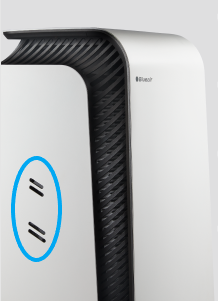
1. The sensors on the Protect are on the left side of the unit and look like diagonal equal signs.
2. Clean out the sensors by using a can of compressed air to spray 3-4 second bursts into the holes.
User Manuals & Replacement Filters
Protect FAQ
Why is light on my device glowing?
Your device has lost its Wi-Fi connection temporarily.
If you haven’t changed any the Wi-Fi settings on your router, the device should be able to reconnect by itself within a few minutes.
If necessary, try the following troubleshooting tips to reconnect the device:
- If you changed a Wi-Fi setting on your router, you must update your app with these settings. Tap ‘+’ in the top right corner of the app and re-add your device.
- Unplug and plug the router.
- Make sure that VPN is off and that you are not using Firewalls (for more information about, check below the Wi-Fi network requirements: 'What Wi-Fi does Blueair smart products support?').
- Place the device closer to the router.
- Check to see if the Wi-Fi is busy with other devices.
What Wi-Fi does your Blueair product support?
2.4 GHz standard Wi-Fi access point (b, g or n).
All standard signal encryptions: WEP, WPA, WPA2, TKIP, AES.
Un-encrypted wireless connections (i.e. Open) Please note: Professional versions of the protocols which require a certificate are not supported. This can be the case for company networks.
Captive portals are not supported. This is when you need to enter a username and password to access Internet, such as in airports or public places.
Access point that broadcasts multiple SSIDs networks or on multiple channels simultaneously may create problems of data packets being lost. This is especially the case in pairing products to the app.
Make sure that no firewall blocks outgoing connections (blocking inbound connections is OK) or any restrictions on protocols such as http/https or sockets.
The firmware of my device is updating. How much time does this take?
The app notifies you every time the firmware in your device is being updated.
During the update, you must keep your air purifier connected to the Wi-Fi to have the firmware update complete. It is imperative you do not unplug the air purifier from the wall during any firmware updates.
The update should take a few minutes. Please do not disconnect your unit during the update!
If the update takes longer than a few minutes:
• Ensure your air purifier is within the router range.
• Leave your air purifier ON and connected to the WiFi. Do not unplug the air purifier during the update.
• Limit the number of connected devices or network activity while the update is in progress.
What to do if the air purifier seems to be stuck in the “firmware update” for over 30 minutes?
• Turn off the Wi-Fi network.
• Attempt to connect to a different Wi-Fi network or personal mobile hotspot.
• Upon connecting to a new Wi-Fi network or hotspot, the device will attempt to update again.
Does the product have a remote control?
No. But all the Blueair products that have the WiFi feature can be remotely controlled via the Blueair app and via Amazon Alexa for voice enabled control.
My air purifier was connected before and now it has disappeared from the app
Why is your air purifier not visible in the app anymore?
- You cannot have two Blueair App accounts connected to one air purifier.
- The air purifier will be removed from the original account when onboarded to a new one.
What to do if your air purifier is not visible in the app anymore?
- Open your Blueair App
- Click on Connect product and follow the instructions in the app.
- Make sure to use only one Blueair app account to control and see information about your air purifier.
You can use the same account on different smartphones: You and your family can share the same account.
Why is there a red light indicator on the panel of my Protect air purifier?
A filter replacement indicator appears on the air purifier when it is time to change filter.
Remove the used filter and replace by a new filter. On Protect air purifiers the filter light indicator disappears automatically after inserting a new Blueair filter. You do not need to, nor can, press down the filter light to reset the filter replacement indicator.