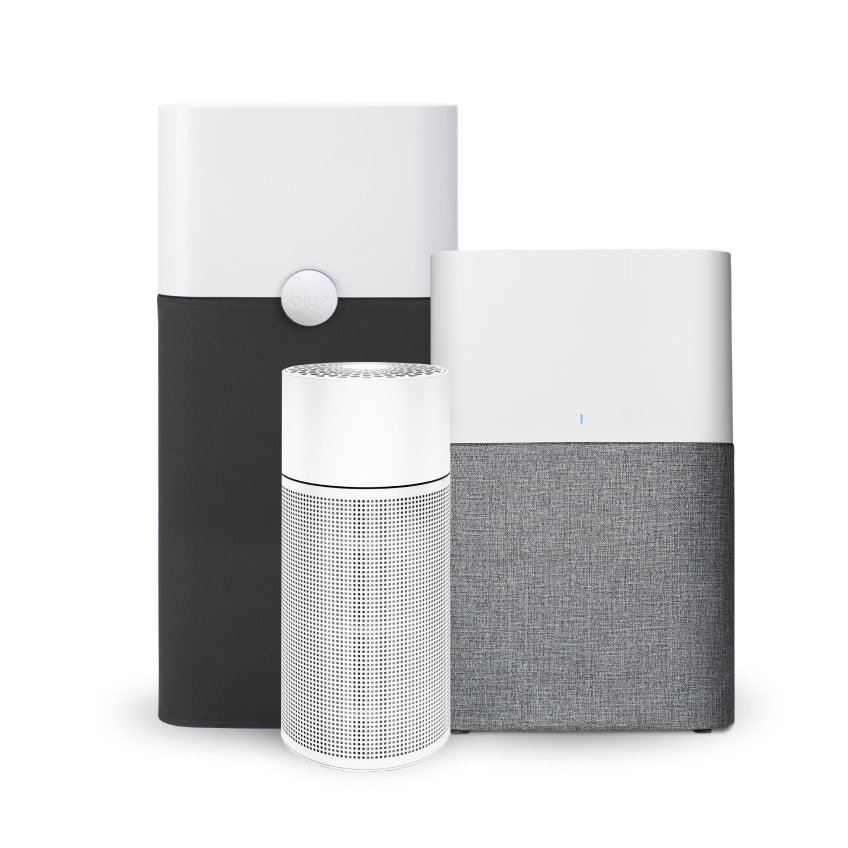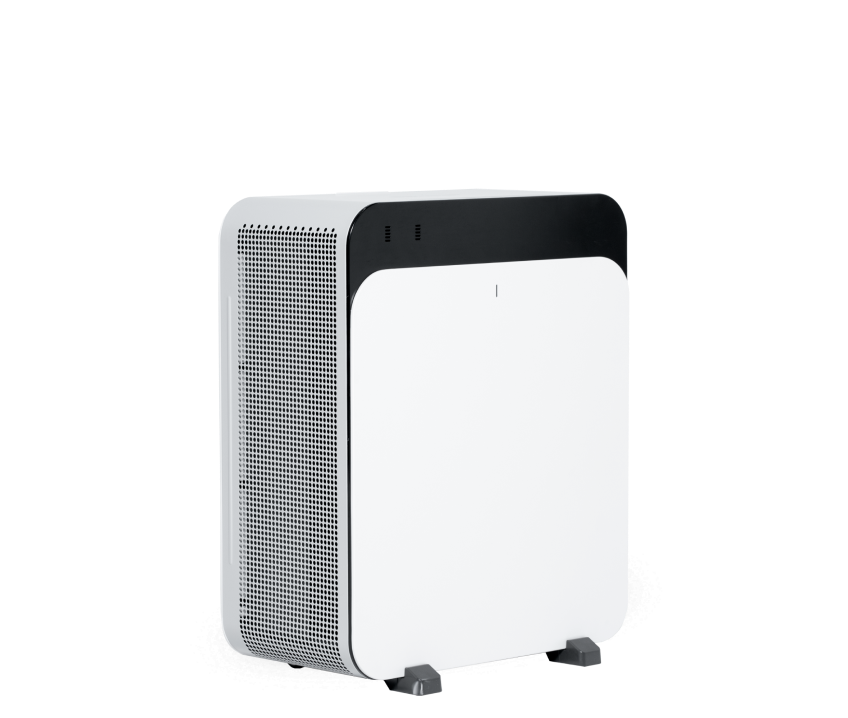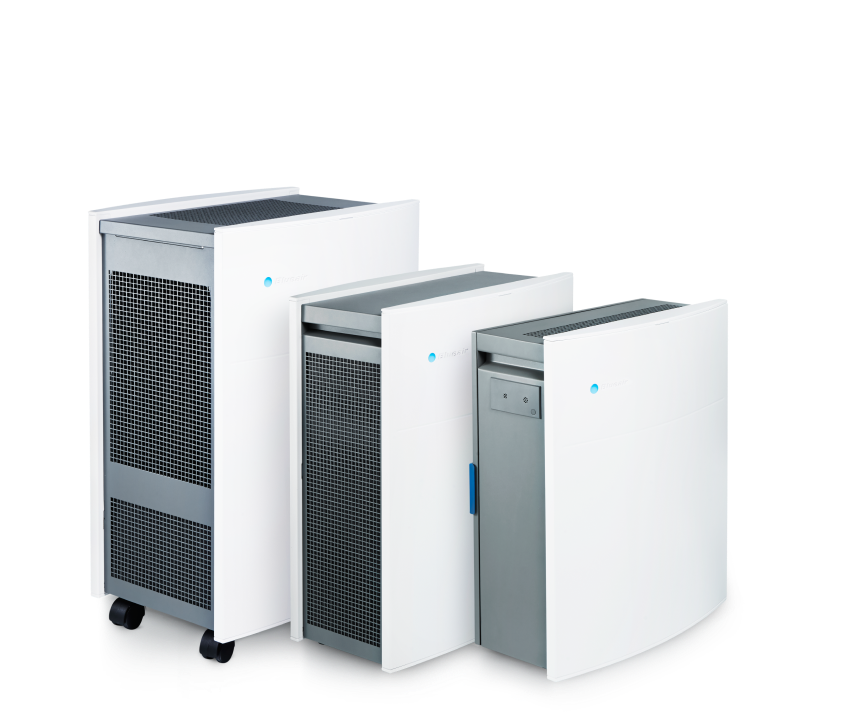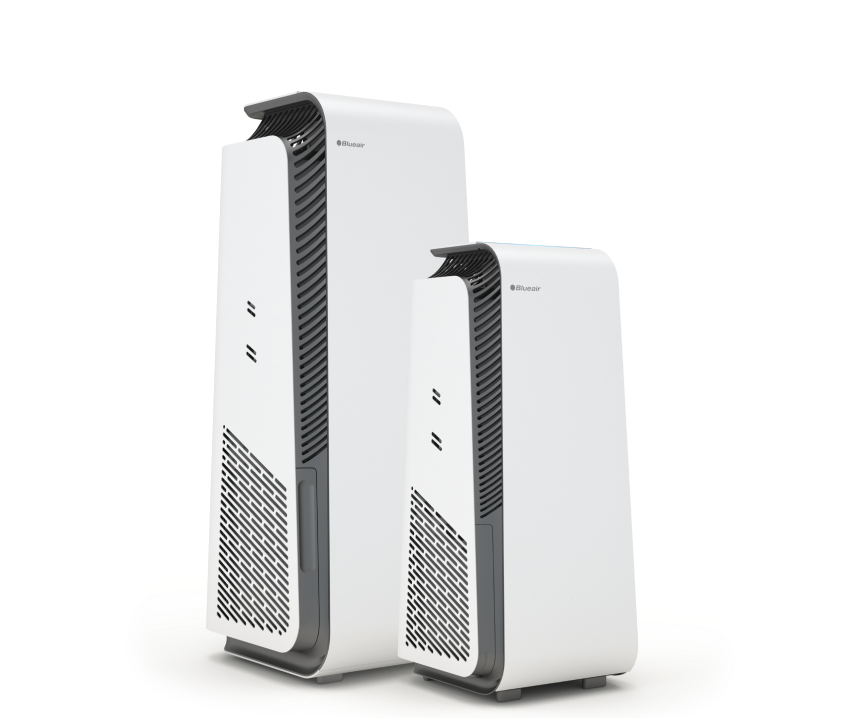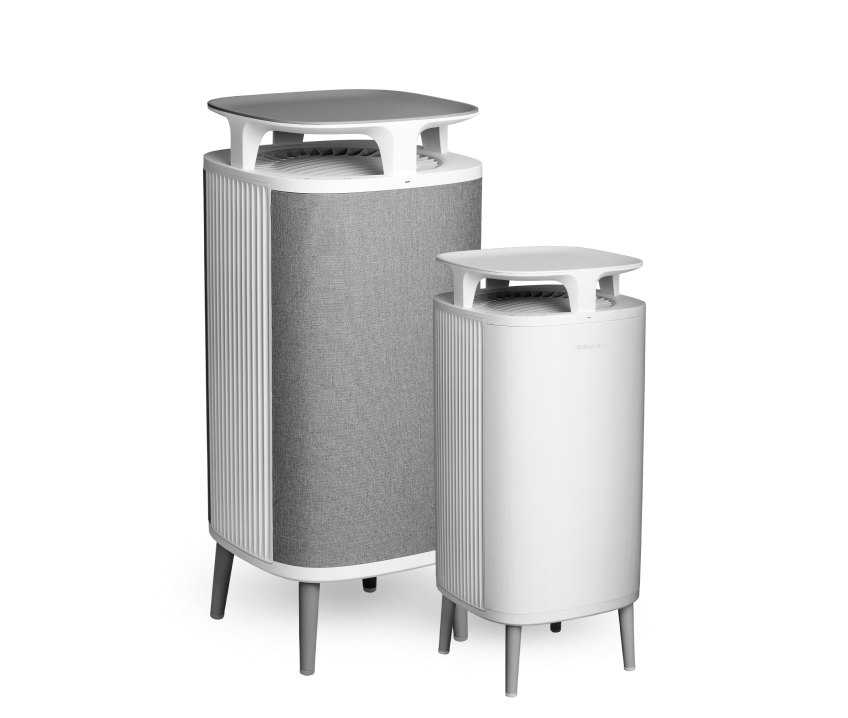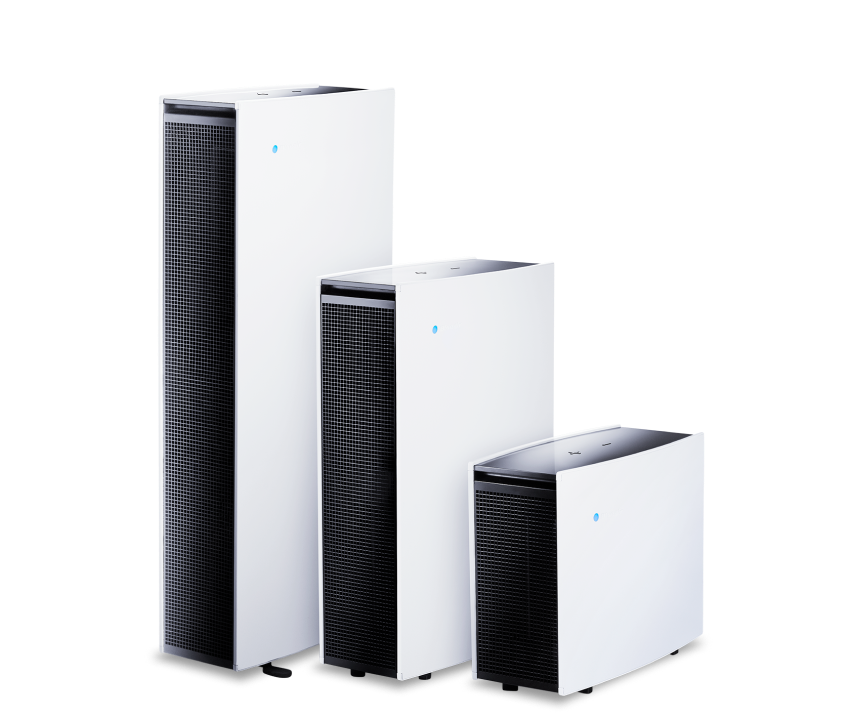
Classic


Top questions about Classic
The firmware of my device is updating. How much time does this take?
The app notifies you every time the firmware in your device is being updated.
During the update, you must keep your air purifier connected to the Wi-Fi to have the firmware update complete. It is imperative you do not unplug the air purifier from the wall during any firmware updates.
The update should take a few minutes. Please do not disconnect your unit during the update!
If the update takes longer than a few minutes:
• Ensure your air purifier is within the router range.
• Leave your air purifier ON and connected to the WiFi. Do not unplug the air purifier during the update.
• Limit the number of connected devices or network activity while the update is in progress.
What to do if the air purifier seems to be stuck in the “firmware update” for over 30 minutes?
• Turn off the Wi-Fi network.
• Attempt to connect to a different Wi-Fi network or personal mobile hotspot.
• Upon connecting to a new Wi-Fi network or hotspot, the device will attempt to update again.
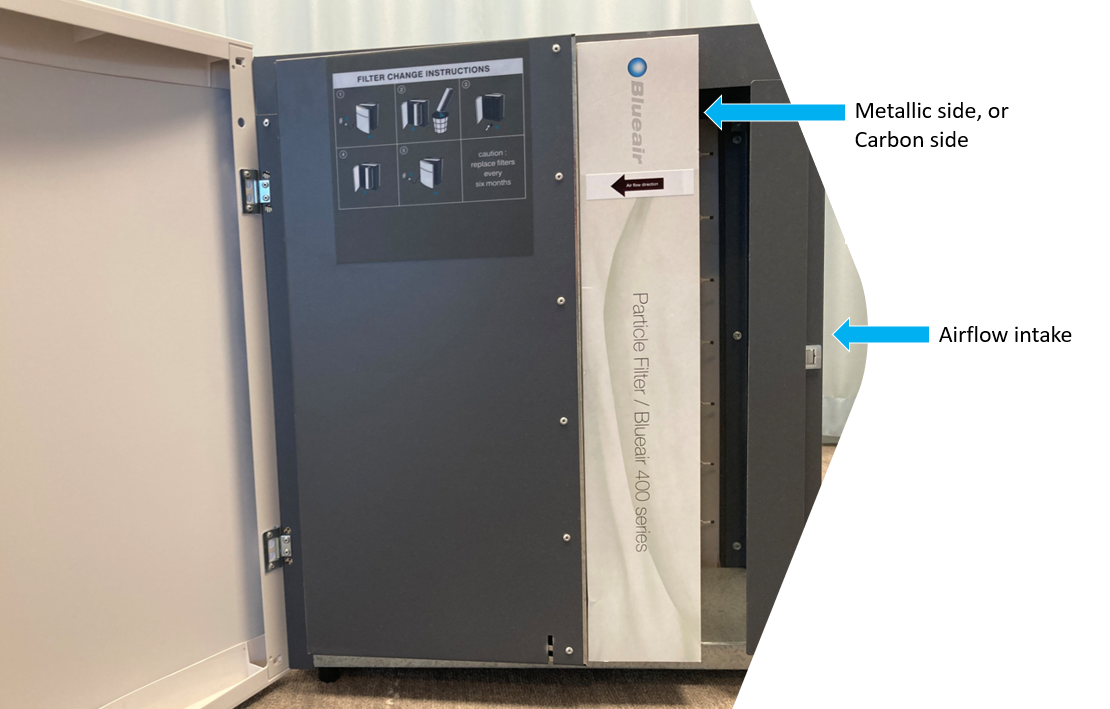
How do I change the filter on a Classic 400 air purifier?
Please follow the instructions on your filter.
If the instructions are not clear, please ensure the following:
- Particle filter: When you install your filter, the metallic side should be to your right side. The air should first go through the metallic side of the filter.
- Carbon filter: When you install your filter, the carbon side (black side) should be to your right side. The air should first go through the carbon side of the filter.
What to do if the air quality does not improve with my Classic purifier?
• Make sure the air purifier you purchase is designed to handle the square footage of the space where it's living as close as possible.
• Make sure the windows and doors are closed.
• Keep the air purifier at leave 5 inches away from any wall or furniture and do not obstruct outgoing air vents
• Be sure to run the air purifier 24/7.
• Clean the sensors. If the particle levels are constantly very high there might be accumulated dust on the sensor giving a false indication. Vacuum the outside of the air purifier, especially the air inlets, outlets, and the inlet for the air quality sensor. Power off the unit before vacuuming.
Classic purifier is stuck on the high-speed level / Display light is orange or red.
To resolve this, you will need to clean the sensors on the purifier. See the steps below:
1. On the bottom or side of the machine there is a small 3-inch rectangular panel held in place by a screw, which has two circular groups of holes. The sensors are behind these holes.
2. Do Not unscrew or remove this panel.
3. Clean out the sensors by using a can of compressed air to spray 3-4 second bursts into the holes.
How do I connect my unit using "manual mode"?
2. Set the unit to manual mode:
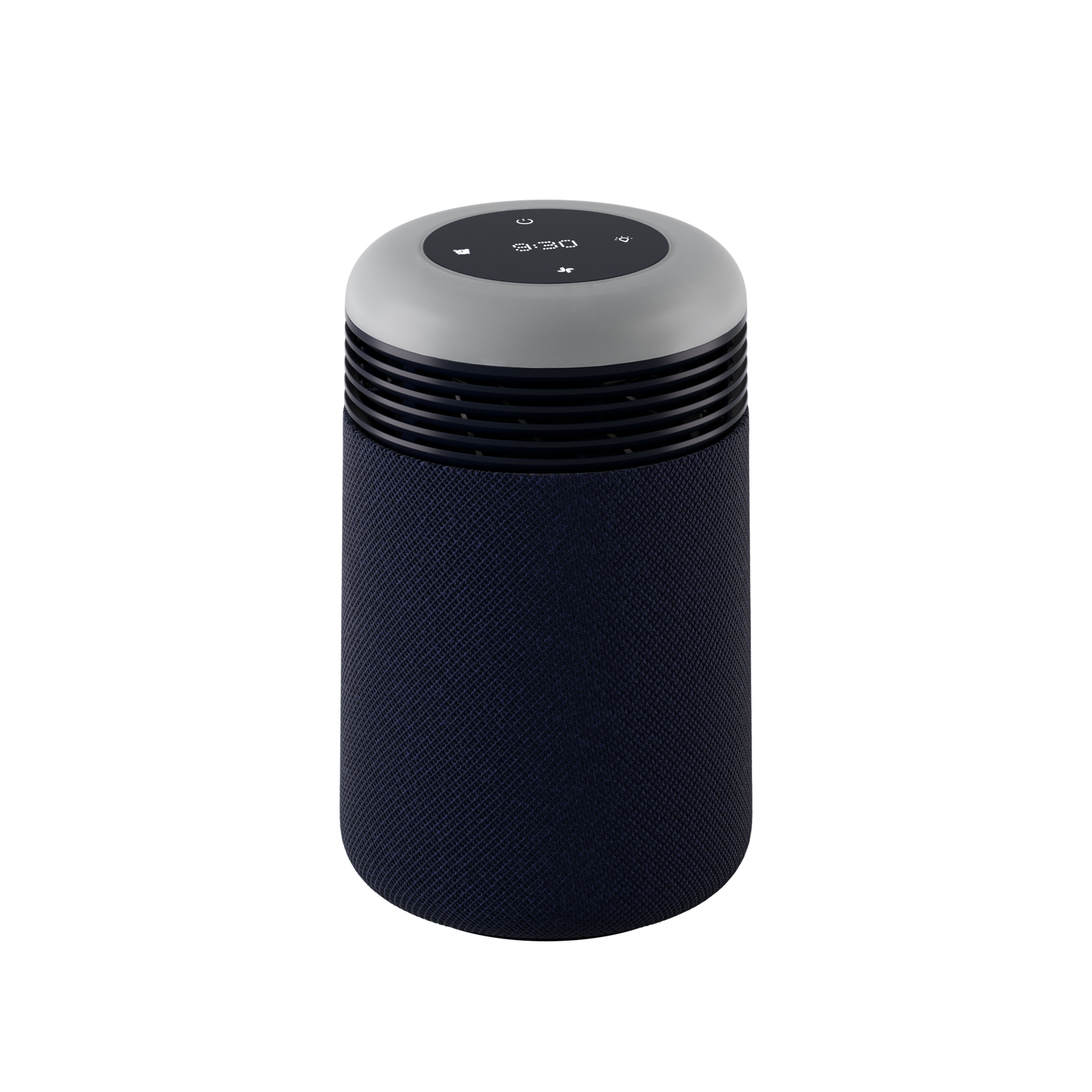
a. Open the flip top lid and press the Wi-Fi symbol on the display for three seconds.
b. Wait until the Wi-Fi symbol is blinking and press it again for three seconds.
When the Wi-Fi symbol is pulsing, the Blueair Classic is in manual mode.
3. On your smartphone, navigate to 'Wi-Fi settings'. Wait for the network 'classic-config' to show. Connect to it.
4. Return to the Blueair app and follow the guided process.
5. When the app asks you to connect your Blueair Classic to a Wi-Fi network, fill in the name and password of the Wi-Fi network that you want to connect your Blueair Classic to.
When the LED light is solid, your Blueair Classic is connected to your Wi-Fi network. The temporary Blueair classic-config network is automatically terminated. Your smartphone automatically connects to your usual Wi-Fi network.
How to Use Videos
User Manuals & Replacement Filters
Classic FAQs
The firmware of my device is updating. How much time does this take?
The app notifies you every time the firmware in your device is being updated.
During the update, you must keep your air purifier connected to the Wi-Fi to have the firmware update complete. It is imperative you do not unplug the air purifier from the wall during any firmware updates.
The update should take a few minutes. Please do not disconnect your unit during the update!
If the update takes longer than a few minutes:
• Ensure your air purifier is within the router range.
• Leave your air purifier ON and connected to the WiFi. Do not unplug the air purifier during the update.
• Limit the number of connected devices or network activity while the update is in progress.
What to do if the air purifier seems to be stuck in the “firmware update” for over 30 minutes?
• Turn off the Wi-Fi network.
• Attempt to connect to a different Wi-Fi network or personal mobile hotspot.
• Upon connecting to a new Wi-Fi network or hotspot, the device will attempt to update again.
How do I change the filter on a Classic 400 air purifier?
Please follow the instructions on your filter.
If the instructions are not clear, please ensure the following:
- Particle filter: When you install your filter, the metallic side should be to your right side. The air should first go through the metallic side of the filter.
- Carbon filter: When you install your filter, the carbon side (black side) should be to your right side. The air should first go through the carbon side of the filter.
What to do if the air quality does not improve with my Classic purifier?
• Make sure the air purifier you purchase is designed to handle the square footage of the space where it's living as close as possible.
• Make sure the windows and doors are closed.
• Keep the air purifier at leave 5 inches away from any wall or furniture and do not obstruct outgoing air vents
• Be sure to run the air purifier 24/7.
• Clean the sensors. If the particle levels are constantly very high there might be accumulated dust on the sensor giving a false indication. Vacuum the outside of the air purifier, especially the air inlets, outlets, and the inlet for the air quality sensor. Power off the unit before vacuuming.
Classic purifier is stuck on the high-speed level / Display light is orange or red.
To resolve this, you will need to clean the sensors on the purifier. See the steps below:
1. On the bottom or side of the machine there is a small 3-inch rectangular panel held in place by a screw, which has two circular groups of holes. The sensors are behind these holes.
2. Do Not unscrew or remove this panel.
3. Clean out the sensors by using a can of compressed air to spray 3-4 second bursts into the holes.
How do I connect my unit using "manual mode"?
2. Set the unit to manual mode:
a. Open the flip top lid and press the Wi-Fi symbol on the display for three seconds.
b. Wait until the Wi-Fi symbol is blinking and press it again for three seconds.
When the Wi-Fi symbol is pulsing, the Blueair Classic is in manual mode.
3. On your smartphone, navigate to 'Wi-Fi settings'. Wait for the network 'classic-config' to show. Connect to it.
4. Return to the Blueair app and follow the guided process.
5. When the app asks you to connect your Blueair Classic to a Wi-Fi network, fill in the name and password of the Wi-Fi network that you want to connect your Blueair Classic to.
When the LED light is solid, your Blueair Classic is connected to your Wi-Fi network. The temporary Blueair classic-config network is automatically terminated. Your smartphone automatically connects to your usual Wi-Fi network.